Contents▾
How to play
Play from ExplorePlaying a chatPlaying storiesHow Ink worksSet up your personaPlay with diceHow to create
A worked exampleCreating a characterCreating a scenarioInline images: illustrations in the chatMoving the story with phasesEmotion parameters for personalityFeed world facts on demandBuilding a TRPGMake images and videoPublish your workGetting better
Writing so the AI understandsPlaying stories
A story is long-form play built from chapters and a whole cast. Where a scenario sets up one character in one situation, a story keeps several characters in the same world and moves the stage forward chapter by chapter. A narrator AI writes the scene as a whole, with each character's lines written inside it.
How stories differ from scenarios
- Several characters: you can register as many cast members as you like, and pick which faces appear in each chapter.
- Divided into chapters: when a chapter ends you move on to the next one, and what happened is carried forward as a summary.
- The narrator writes the scene: instead of one character speaking in first person, a single reply carries the scene description and everyone's lines together.
- You are a character too: you pick a persona to play. Their name and profile reach the narrator, and you are treated as that person.
Scenarios suit spending time with a single character; stories suit widening a world and its relationships over a long run.
Starting to play
- Open a published story from the "Stories" tab on Explore. Stories you wrote yourself are listed on the Stories page.
- Press "Play" and a screen asks who you want to play as. Choose a persona the story's author prepared, one of your own My personas, or "Play as yourself".
- The name you chose is used when characters address you, and the cast speaks to you as that person.
You can stop any time and pick up again with "Continue". To replay the same story from the start as a different persona, choose "Start fresh": it runs as a separate play alongside the first one.
Reading the screen
The panel beside the chat gathers the current state of the story. Open and close the panel with the tab on the right edge of the screen.
- Chapter: which chapter you are in, its title, and progress. "Next chapter" lives here too.
- Cast: the characters appearing in this chapter.
- Relations: each cast member's relationship to you. "Relationship at story start" and "Current relationship" sit side by side, and the latter updates as the chat changes things.
- Status: date, location, next goal and other facts about where things stand now (see below).
- Map: the list of places and where you are (see below). It appears when the story has places.
- Image: the illustration most recently inserted into the text. Until one appears, it shows the image of whoever is speaking.
- Settings: this chat's settings, such as the response model and text speed (chat settings).
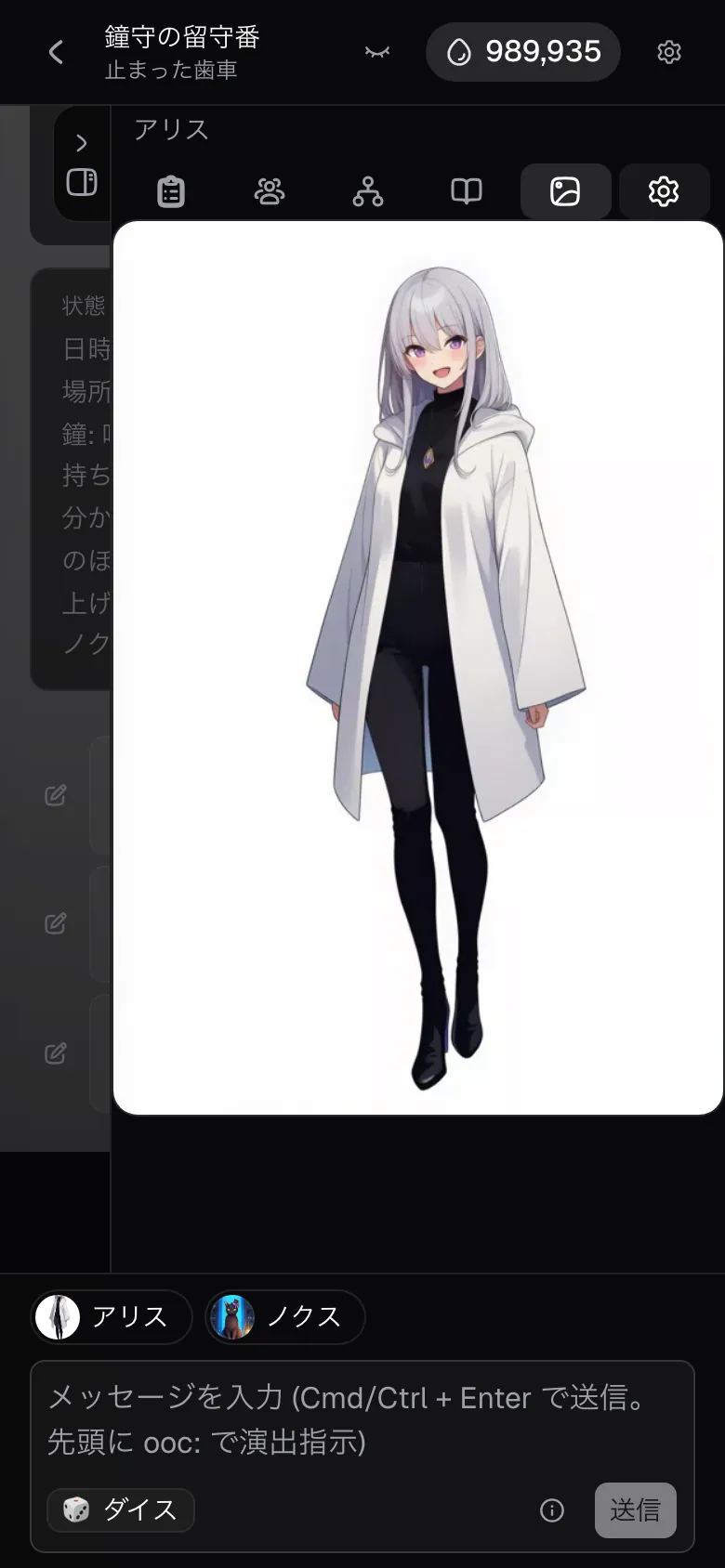
The status panel
Every reply ends with a status panel summarizing the situation: date, location, next goal, who is present. The narrator updates it as the story moves. The author decides what it holds, so an adventure can track HP and money, and an investigation can track clues and time remaining.
The location line is written by the server from the place you travelled to. The narrator cannot get the location wrong.
Travelling on the map
In stories that have places, pick a destination from "Map" in the panel to travel there. Travelling costs no Ink.
- Nothing happens in the text at the moment you choose. The new scene is written in the reply to your next message.
- The cast at each place is listed. Once you arrive, its residents appear in the scene.
- Residents of places you have not visited stay as a name and a one-line introduction. Their full profile does not reach the narrator until you go and meet them.
- You cannot travel while a reply is being generated, or before the chat has started.
Dice checks
In stories that use dice, a "Dice" button appears near the input field. It settles actions whose outcome is uncertain by leaving them to chance. Rolling costs no Ink.
- Press "Dice" and pick a skill to use (observation, persuasion, lockpicking, or whatever the author set up).
- The server rolls. By default it rolls one 100-sided die: a roll at or under the skill's success rate is a success, and anything over it is a failure.
- The result is handed to the next reply, and the narrator writes the scene the way it landed.
With the default settings, two bands of the roll are special.
- 5 or under = critical success: you get more than you hoped for.
- 96 or over = fumble: you fail, and the situation can get worse.
Authors can change the number of sides and how success is judged for each story. The details are in the Play with dice chapter.
Sometimes the narrator asks for a check itself, as in "this calls for an observation check". When that happens a card prompting the check appears above the input field; roll from there.
Moving to the next chapter
When you are done with a chapter, move on with "Next chapter". After you confirm, what happened in the chapter is summarized and carried into the next one along with the facts worth keeping. The earlier chapter's messages stay readable, but progress cannot be moved back to an earlier chapter.
Creating a story
Start from "Create a story" on the Stories page. The editor is split into seven steps.
- Basics: title, description, cover image, tags and publishing. The description appears in listings and on the detail page.
- World: the foundation shared by every chapter.
- Cast: which of your characters appear, and their relationship to you.
- Personas: the people a player can play as.
- Gameplay: two tabs: "Rules & checks" for the play style, state fields, skills and checks, difficulty and game rules, and "Map" for places. The skills, state fields and places you make here are ready to pick in the chapters that follow.
- Chapters: adding and reordering chapters, with each one's opening text, cast and chapter rules (such as the action limit).
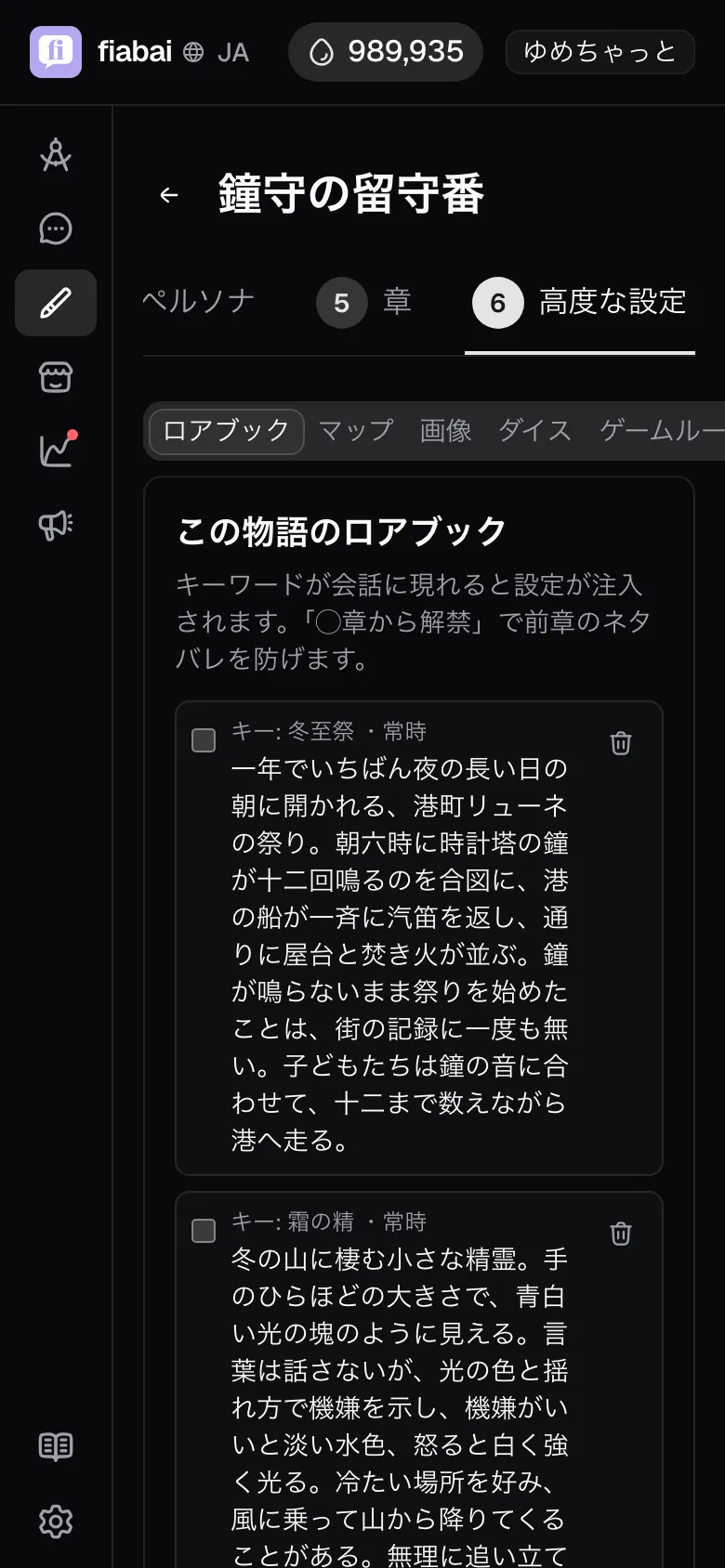
- Advanced: two tabs: Lorebook and Images.
Cast and personas
- Give each cast member a one-line relationship to you ("bodyguard to ◯◯", say). That becomes the relationship at the start of the story, and it updates as "Current relationship" while you play.
- Once more than 10 characters are on stage at once, reply quality and speed tend to drop. For a large story, narrow the number on stage at any one time using per-chapter cast selection and place residents.
- Besides preparing personas per story, anything you save under My personas can be picked in any story. A persona cannot share a name with a cast member.
State fields
"State fields" in the Rules & checks tab of the Gameplay step define the values tracked during play. Pick a type for each: a number such as stamina or money, a stage such as the time of day, yes/no, text or a list. The server holds the values, so they never drift from the narration. Numbers can carry thresholds, and the server reliably triggers a near-death scene, the close of a chapter or a loss. Add a description to a field and changes to it are picked out of the narration more accurately.
Presets for RPG/adventure, mystery, school life and survival are provided, so the quickest route is to insert the closest one and rewrite it. Turn on "Keep per-cast state" and each cast member carries a relation value, bonds and a mood, so a deepening relation can shift checks and drive branches.
Building places (the map)
Create places under "Map" in the Gameplay step. If you create none, the full cast appears every turn. Once you do, the cast handed to the narrator narrows to "companions plus that place's residents".
- Name and description: the description is material for the scene writing. Including smell, sound and time of day keeps the imagery steady.
- Cast who are here: the residents of that place. Residents of other places stay as a name and a one-line introduction until the player visits.
- Starting place: you can mark exactly one. Setting it means the narrowing works from the very first turn; without it, the whole cast appears until the first move.
- Scenery image: chosen from the story images you registered under "Images".
- Drag the nodes to arrange the layout (positions are saved). The links are only how the map looks; they do not restrict where you can travel.
Story images
"Images" in the Advanced step holds scenery, monsters and scene art. It is separate from character expression variants, and holds up to 110 images per story. The mechanism and the writing advice match the inline images chapter, with two extra unlock conditions in stories.
- Unlock at places: leave it empty and the image works anywhere. Pick places and it is used only while you are there.
- Unlock from chapter: used from that chapter onward. This holds back art you do not want appearing early.
Dice skills
Turn on dice in the Rules & checks tab of the Gameplay step and you can register up to 16 skills. Each one takes a skill name, target number and description.
- With the default 100-sided die, target numbers run from 5 to 95. Within that band, critical success (5 or under) and fumble (96 or over) never contradict the check.
- The narrator receives the skill name and description, never the target number. Telling it the odds makes it start talking in numbers.
- Write the description as one sentence that makes clear when the skill is used, such as "notices what others overlook". The narrator reads it to judge whether a scene calls for a check.
Narrow it down to the three to five actions that genuinely decide outcomes in your story, and the narrator finds it easier to pick the skill that fits the scene. Finer settings such as the number of sides, how success is judged and lottery outcome tables are covered in the Play with dice chapter.
Lorebook
"Lorebook" in the Advanced step inserts a piece of setup when its keyword appears in the chat. Mention "tavern" and the tavern's setup is handed over, so you never have to pass everything at once. Adding "unlock from chapter ◯" keeps an entry out of the candidate pool until that chapter, which structurally prevents spoilers in earlier chapters.
"Find a lorebook" lets you search your own lorebooks and ones other users have published, and add them to this story. Borrowing a lorebook that collects the setup of a town or an organization is a quick way to give your world more depth. Tips for writing them are in the Feed world facts on demand chapter.
Game rules
"Game rules" in the Rules & checks tab of the Gameplay step holds the rules handed to the narrator every turn. You can fix the shape of the pacing here, as in "slip in a small event every 3–5 actions". Turn on "Show choice chips" in the same tab and candidates for the next action are lined up below every reply as "Reply suggestions", so players can send one with a single tap. Turn on "Let the character drive the story" and every turn the GM works out the cast's next move and passes it to the narrator, so the characters bring up topics on their own and carry the scene forward.
Building it as a TRPG
A story can be built the way a tabletop session is run: a chapter is one session, and a phase is a beat (a scene) within it. Carve phases out in a chapter's "Advanced settings" and each scene gets its own goal, clues, clocks and conditions for moving on, so the scene shifts with the player's actions and the outcome of checks.
- Phases: write the scene's goal and the clues that open on arrival or on a successful check. Add a clock (a gauge of progress or danger) and the scene tightens with every action, sending play to the next scene when it fills. Transitions can fire on a successful check, a full clock, the player's choice or a state value, and sending each branch to a different chapter splits the route.
- State fields: the server keeps values that carry across scenes, such as stamina, inventory or the time of day. Thresholds reliably trigger near-death scenes or the close of a chapter, and overriding values on entering a chapter or phase reflects a camp or a change of stage mechanically.
- Skills and checks: put skills on the actions that decide outcomes and the server fixes the roll and the result, which the narrator then writes as it is. With three difficulty tiers, state values and cast relations make checks easier or harder, so the situation shapes the result.
- Referee: set the timing to "Leave it to the referee" and the server decides whether a check is needed and how hard it is, rolling ahead of time. The narrator focuses on the prose, with fewer over-asked or missed checks.
- Handouts: a mission or secret only the player reads at the start of a chapter. It never reaches the narrator, so the player can enter the scene with their own aim in mind and choose the moment to reveal it.
- Map connections: give places a "reachable from here" list and turn on "Limit travel to connected places" for an exploration with routes. Set the current place on entering a chapter or phase and the change of stage reads clearly.
The build order, where each device shines and design patterns are collected in Building a TRPG.
Publishing
Under "Publishing" in Basics, choose one of three visibility levels.
- Public: listed under the "Stories" tab on Explore for other users to play.
- Unlisted: not listed on Explore. Only people with the URL can open and play it.
- Private: only you can use it.
Public and unlisted stories need a cover image. If the story contains adult material, turn on "NSFW (adult content)" as well (it then appears only to users who have enabled adult content). You can add up to 20 tags, and "Tag from content" adds matching tags based on what you have saved.