Contents▾
How to play
Play from ExplorePlaying a chatPlaying storiesHow Ink worksSet up your personaPlay with diceHow to create
A worked exampleCreating a characterCreating a scenarioInline images: illustrations in the chatMoving the story with phasesEmotion parameters for personalityFeed world facts on demandBuilding a TRPGMake images and videoPublish your workGetting better
Writing so the AI understandsCreating a scenario
A scenario defines when, where, and in what relationship you meet this character. One character can have many scenarios, so whenever you want to try a different situation, just create a new one.
You can start from the character detail page, or from "Create a new scenario" under Create → Scenarios. The editor walks through six steps: The story → You & the character → Opening scene → Flow → Images → Title & publish, and saves every time you press "Next". In the first step you can describe the stage you have in mind to Alice and have her write a draft (free, capped at a number of uses per day). Everything she produces is yours to rewrite.
What each field is for
- Title: a short line that conveys the scene and the relationship at a glance, such as "In the library, prepping for the school festival". It makes scenarios easy to tell apart in lists.
- You and the character: state the social roles of the two in one sentence — "senior and junior", "strangers meeting for the first time", "colleagues who joined the same year". This is the key to stopping the AI from guessing at the relationship on its own.
- Setting and background: describe the stage and everyone's position together. Write information that does not depend on the timeline (the mood of the place, the power balance between organizations and positions), aiming for 500–1,000 characters. The more you write here, the longer and richer each reply gets. It is always passed to the AI, whether the chat is in free talk or advances through phases. Who the protagonist is goes in "Who you are in this scenario" in the You & the character step.
- Opening scene: the first message shown at the start of the chat. Its shape and length become the model for the character's replies that follow. For quick, snappy exchanges, write about three lines of dialogue with short action descriptions; for richer replies with narration and gestures, write it longer. The AI keeps replying in the same format and at a similar length. Start each spoken paragraph with "@CharacterName: " and the chat shows the speaker's name tag from the very start, which also makes it easier for the AI to keep speakers apart in the same way.
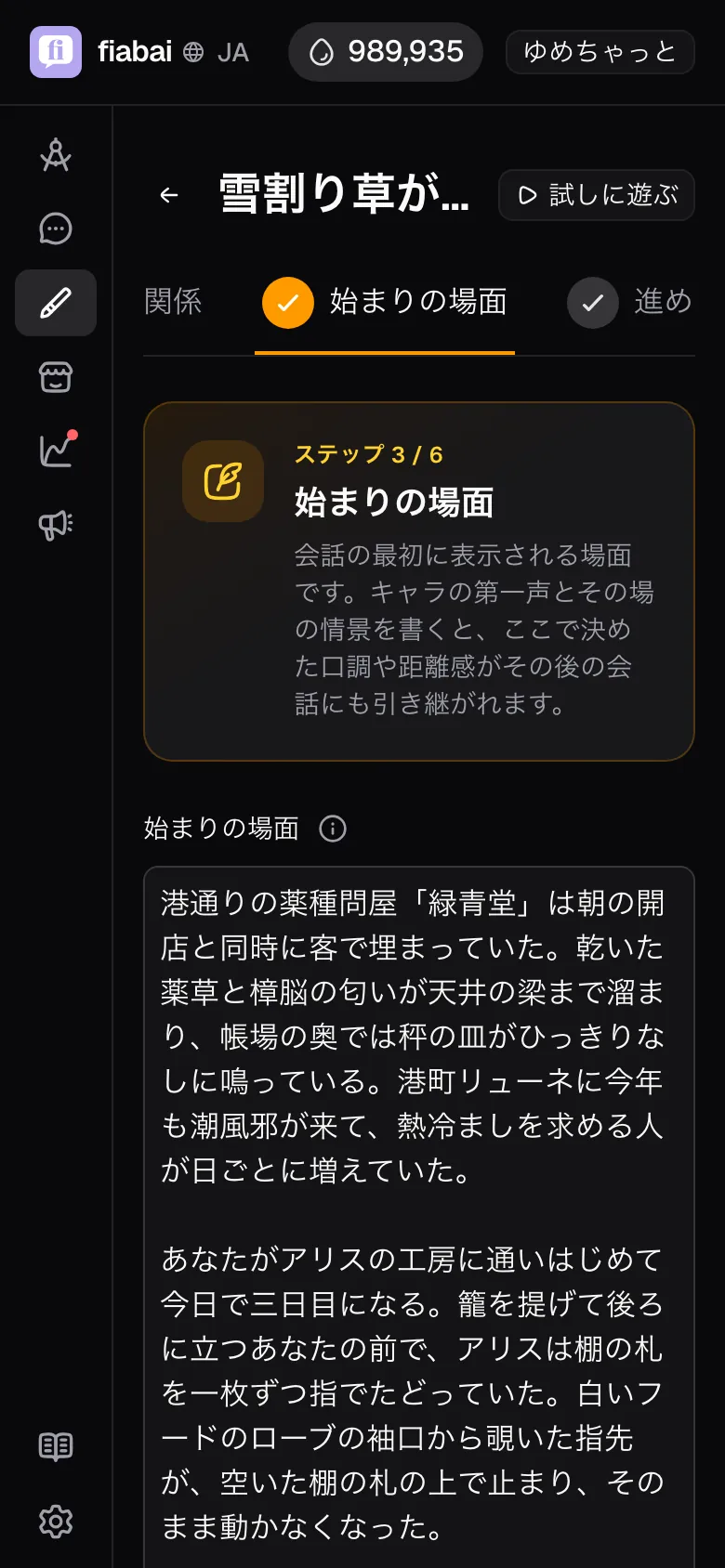
An opening whose spoken paragraphs start with “@CharacterName: ” - Setting (the base for the chat): written in the free talk section of the Flow step. In chats where the player picks "Free talk", this setting becomes the base of the chat. It is not passed into chats that "Advance through phases", so even if you write what happens later in the phases here, it does not spoil anything for players who play through phases. See the "Flow" section below for details.
- What the character calls you here (optional): how the character addresses you (the player) in the chat. You can change it to fit your role in the story (if left blank, it falls back to your account setting, and then to "protagonist").
- Who you are in this scenario (optional): in the You & the character step, describe who the player is in this scenario. For example: "A second-year in high school. On the library committee. Quiet, but very curious." With this written, the way the character addresses you and their sense of distance stay steady throughout the chat.
- Narration and style rules (optional): how emotions are expressed, pacing, do / do-not style instructions, and so on, plus any premise you want kept throughout the whole story. These are passed to the AI every turn and take priority over the phase settings. Limits for a single phase go in that phase's “How far they may go”, where they hold for as long as the phase lasts.
- Behind-the-scenes setup (hidden from the character): passed only to the author and the GM-role AI, never to the AI playing the character. Write it by opening "Hidden facts kept from the character (optional)" in The story step. It lets you plant something that surfaces in the character's body or the mood of the room without them knowing why. With "Let the character drive the story" turned on, the GM-role AI uses this setup to whisper the character's next move to them.
Flow (free talk and phases)
The Flow step decides how players can play this scenario. There are two ways to play, and one scenario can offer both.
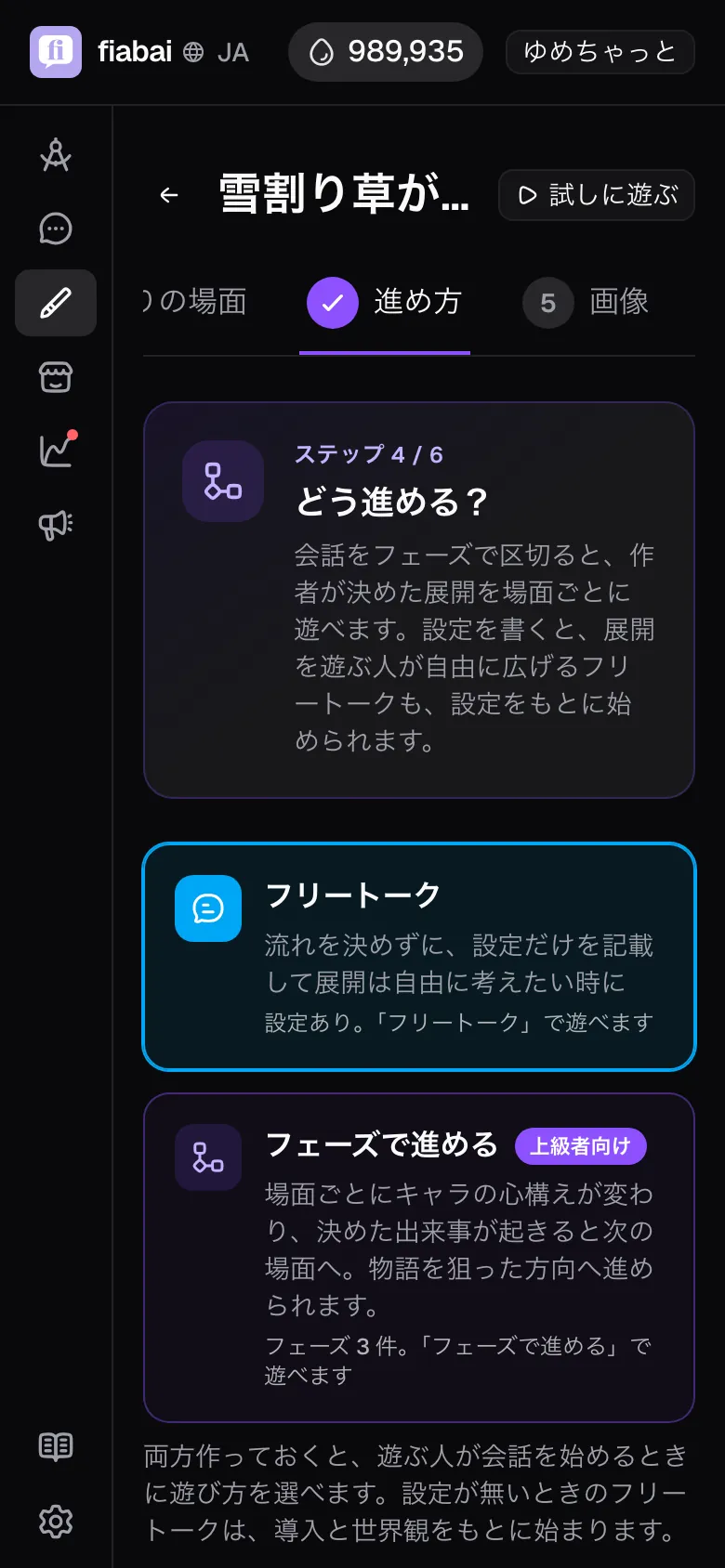
- Free talk: the author writes a minimal setting, and the player decides how the story develops and flows. This is the one that opens first in the editor. The chat receives the "Setting (the base for the chat)", not the text written in phases.
- Advance through phases (advanced): players play the set flow the author built, scene by scene. When an event you chose happens, the story moves on to the next scene, so you can steer it where you want it to go. These chats do not receive the setting. See the Moving the story with phases chapter for how to build them.
Turn on "Use emotions" in the free talk section, and the character's feelings shift through the chat, which you can follow on the emotion meters. The starting feelings and "What moves the emotions" are set here too.
With both a setting and phases, players choose "Advance through phases" or "Free talk" when they start a chat. When the setting is empty, free talk starts from the opening scene and the world setting.
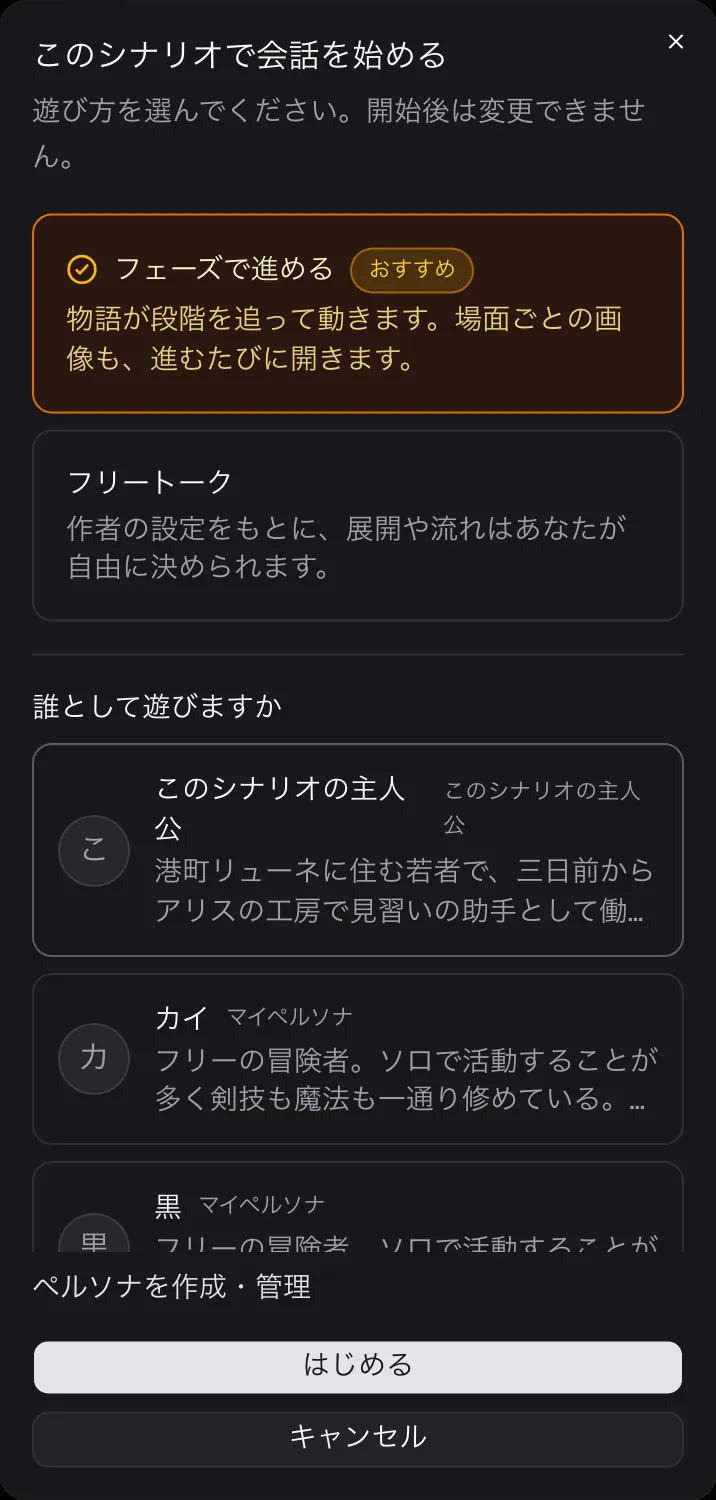
Info format (the status sheet's opening values)
Further down the Flow step, you can prepare the opening lines of the status sheet shown under "Info" in the chat. Write one field per line as "Field: value".
- There are four templates — basics, adventure, everyday and investigation — and picking one replaces the contents. In a scenario with adult content turned on, you can also pick the adult template. The quickest route is to insert the closest one and rewrite it.
- Filling in real values is the safer choice. With "Money: 10" or "Condition: fine" already there, the AI moves on from those. Leave many fields blank and the AI may invent values on the first reply.
- Leaving it empty is fine too. The sheet starts blank and fills in as the chat progresses.
The order to write in
- Fill in the setting and background. Once "where this is and what kind of story it is" is settled, the rest writes itself. Spend your words on what comes up in the chat — the places the character walks through, the relationships between people — and they come alive in the replies.
- Settle you and the character in one sentence. When it is clear what kind of relationship these two have, the character's way of addressing you and sense of distance fit the scene.
- Write the opening scene. With the stage and the relationship decided, the first words come easily. The character's first line becomes the entrance to the chat, and the tone and sense of distance you set there carry over into later turns. Once this is written, "Try playing" lets you get a feel for it.
- Give it a title last. Naming it once the content is settled makes it easy to tell apart in your list.
Tips for writing the setting
- The situation and the developments that could happen, in 5–10 lines. You do not need to write out individual lines of dialogue. A rough sketch of "this kind of trigger could send things in this direction" is enough.
- Put the character's hidden setup and any facts you are not ready to reveal in a separate field. Premises only the author knows go in "Behind-the-scenes setup (hidden from the character)". That information is never passed to the AI playing the character, so nothing gets spoiled.
- Do not overload it with concrete subject-matter vocabulary. The AI can latch onto specific keywords and repeat the same words in other scenes. Focus on "what kind of atmosphere flows here" rather than "who does what".
Images and the thumbnail video
- Scenario image: upload one, or generate it in the media studio from "Create image / video with AI" and adopt it.
- Thumbnail video: register an mp4 and it loops in the Explore listing. Up to 8 seconds and 50MB. It catches the eye more than a still, which suits a scenario you want to lead with.
- Extract appearance: writes an appearance description from the scenario image (1 Ink). The extracted text does not reach the chat as it is. Copy it and paste it into the character setup to have it take effect in the chat too.
- Inline images: illustrations dropped into the chat text. See the inline images chapter for the details.
Title and publishing
In the final Title & publish step, you set the title, tags and visibility. Once published, the scenario is listed on Explore and other users can start chats with it. For 24 hours after publishing it appears in the "New scenarios" row (that window is the 24 hours from the first publication itself, so switching between public and private does not put it back).
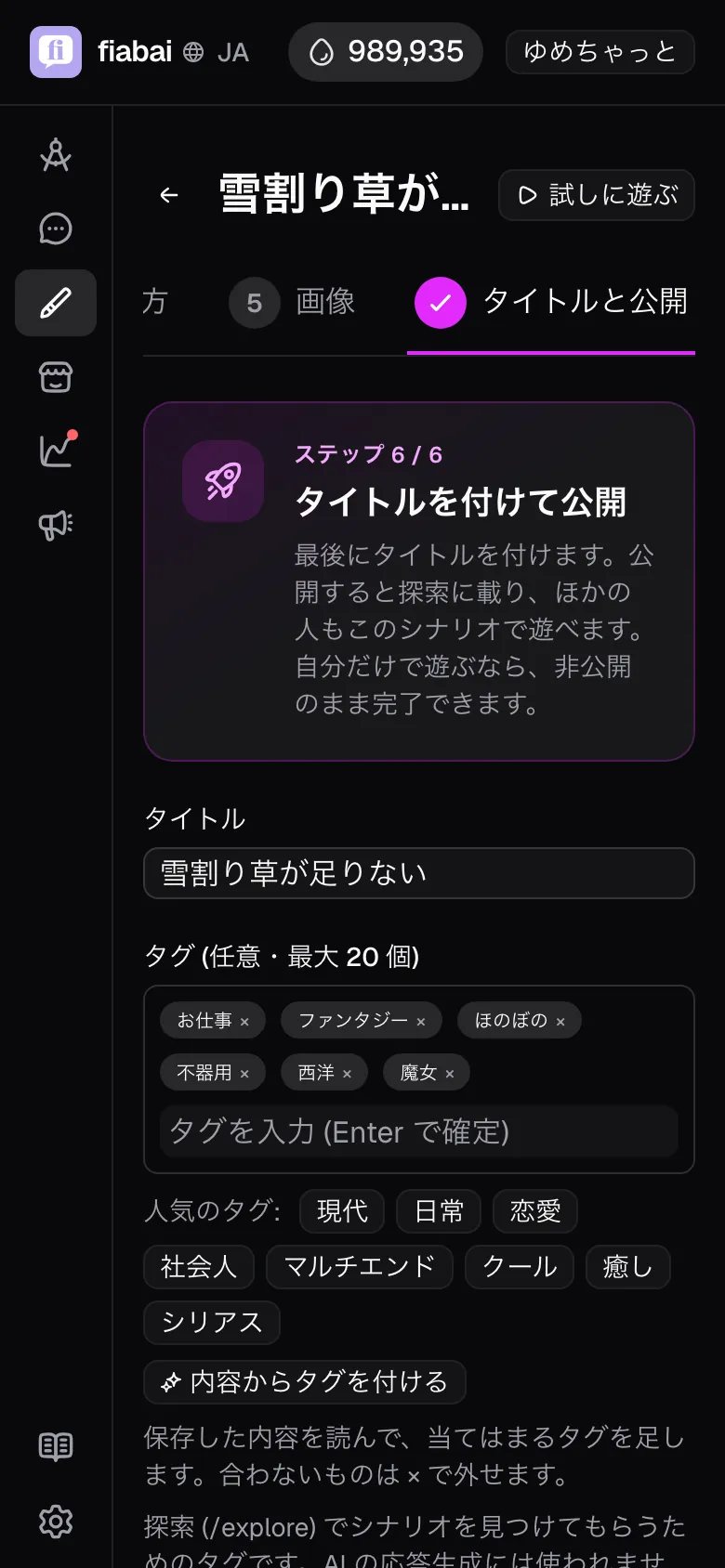
- Visibility: choose from "Publish", "Unlisted" and "Private". An unlisted scenario does not appear on Explore; only people who know the URL can open it and start a chat.
- Publishing and unlisting require an image. Either a scenario image or the character's image is enough to publish.
- Once another user starts a chat, the scenario can no longer be deleted. Withdrawing it back to private is always possible.
- Tags: signposts that help people find the scenario on Explore, up to 20. They are not used for generating replies. Press "Tag from content" to read what you saved and add tags that fit. If an existing tag shows up among the suggestions, pick that one to avoid spelling drift.
- Contains adult content: turn it on and only users who enabled adult content can discover it. The content of the chat is determined by how you write the text. A character's adult variant images are used when someone who has enabled adult content plays a scenario with this turned on (when the character's own author plays, they are used even in scenarios with it off).
- Let the character drive the story: each turn, a GM-role AI works out the character's next move and whispers it to them. The character is less likely to sit back.
As published scenarios get played, you earn creator rewards (Ink back) in proportion to that play.