Contents▾
How to play
Play from ExplorePlaying a chatPlaying storiesHow Ink worksSet up your personaPlay with diceHow to create
A worked exampleCreating a characterCreating a scenarioInline images: illustrations in the chatMoving the story with phasesEmotion parameters for personalityFeed world facts on demandBuilding a TRPGMake images and videoPublish your workGetting better
Writing so the AI understandsPublishing
Switch a character, scenario or story you made to "Publish" and it is listed on the Explore page, where other people can play it. This chapter covers the steps to get listed, the three things you decide along the way (visibility, tags and NSFW), and what shows up on the public page.
There are three things you can publish
Explore is split into three tabs, "Scenarios", "Stories" and "Characters", and each has its publishing settings in its own editor.
- Scenarios — the last step of the scenario editor, "Title & publish".
- Stories — the "Basics" step of the story editing wizard.
- Characters — the "Publish this character" switch, near the bottom of the character detail (edit form).
A scenario's editor opens as soon as you press "Create", so you can use the "Title & publish" step from the start. Only characters have no publishing settings on the creation screen, so set it on the character detail after creating.
Publishing needs an image
The Explore list is laid out as picture cards, so you need an image to publish. The same goes for unlisted.
- Scenarios — either a scenario image or the character's image. If neither exists, the "Title & publish" step shows an "Add images" prompt, which takes you to the "Images" step.
- Stories — a cover image.
- Characters — a character image.
Publishing a scenario
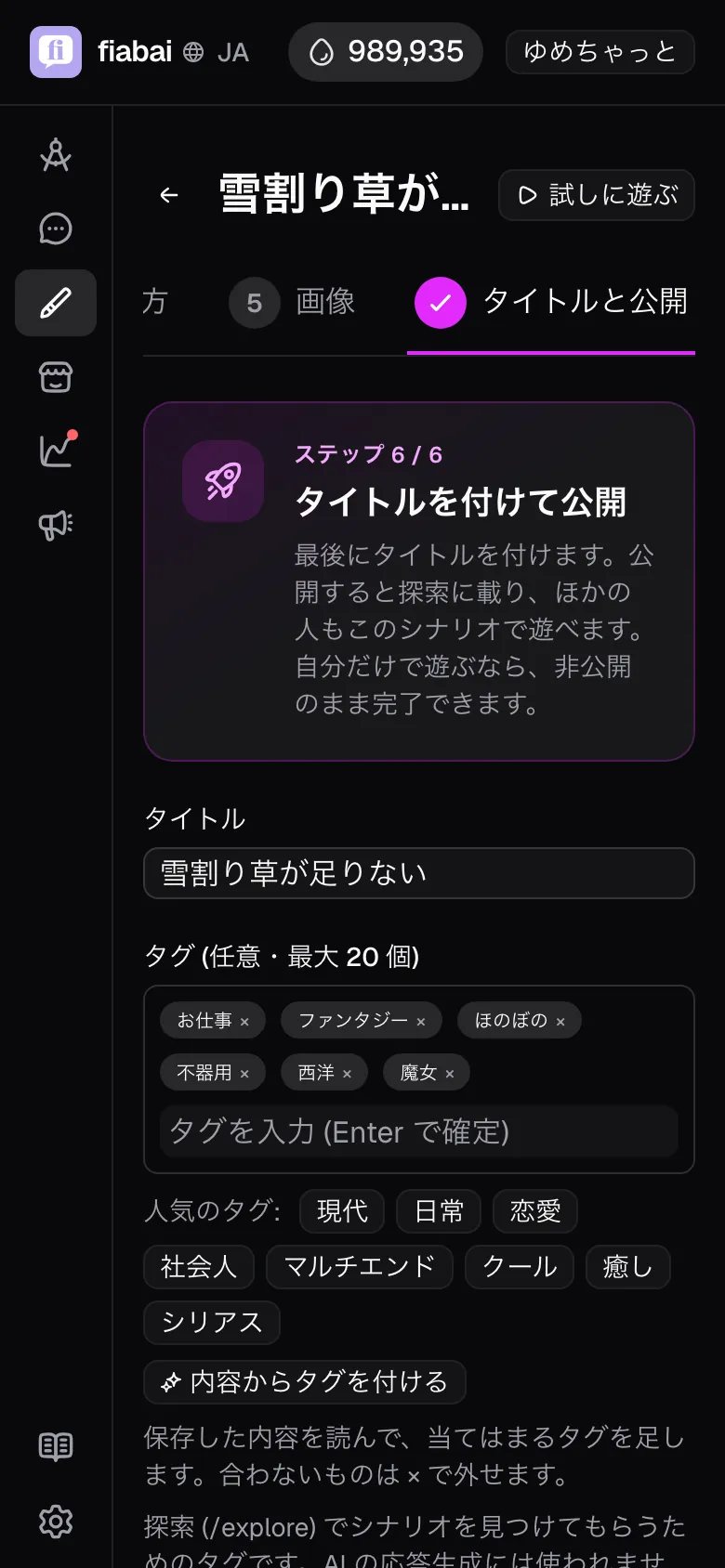
- Open the "Title & publish" step in the scenario editor. Below the title and tags is "Publishing".
- If the content is for adults, check "Contains adult content" first.
- Choose "Publish". The first time only, a "Publish this scenario?" confirmation appears; read it and press "Agree and publish".
- It is saved the moment you choose, and "Published" appears. The adult content check is saved at the same time, so deciding it first gets everything done in one go.
When you change only the check or the tags, they are saved when you move to another step or press "Done".
The "Everyday chat" scenario created automatically with a character does not appear in the Explore list, even if published. It is a default scenario with no setup, so it is excluded from the list (it can still be entered from the character's page). To get listed, publish a scenario you made yourself.
Let the character drive the story
Turn on "Let the character drive the story" at the very bottom of the "Title & publish" step, and every turn the GM works out "the character's next move" and whispers it to the character. The character brings up topics on their own and moves the scene forward more easily. The GM also uses the scenario's "Hidden facts kept from the character" as material for planning that move.
Publishing a story
- Open "Basics" in the story editing wizard. Below the cover image, title, "Description" and tags is "Publishing".
- Choose "Publish". The story's NSFW field is called "NSFW (adult content)".
- There is no save button. It is saved when you move to another step or press "Done", and "Saved." appears. Once you see that, it is saved.
The story's "Description" appears as is in the Explore list and on the detail page. It supports Markdown and a subset of HTML, up to 10000 characters. Writing it lets the list card convey what the story is about.
Publishing just a character
Turn on "Publish this character" on the character detail and press "Update", and the character is listed in the "Characters" tab of Explore, where anyone can play with them in free talk. Characters have no "Unlisted" option; it is either public or private.
Mind the relationship in the other direction too. A character who appears in a published scenario or story has a public character page even if this switch is off. Once the work is published, the character appears on the public side along with it.
The three visibility levels
- Publish — listed in the Explore list, keyword search, tag search and sorting ("Recommended", "Newest", "Oldest"). Translations for people using a different display language are made here too.
- Unlisted — never appears in Explore. Only people who know the URL can open the detail page and start a chat or story. They do not need to log in or be invited; with the URL, they can play exactly as if it were public (the only protection is that nobody learns the ID in the URL). No translations are made, so it appears in its original language.
- Private — only you can use it. Others cannot open it even if they know the URL.
Choose Unlisted and a share URL field and a "Copy URL" button appear in the publishing settings. The URL is /explore/scenario-ID for a scenario and /explore/stories/story-ID for a story.
Goal
Play it from another account to check it before publishing
Where: The scenario editor's "Title & publish" → "Publishing"
What to write
Visibility
Unlisted
The first time, a "Make this scenario unlisted?" confirmation appears.
Share URL
Note it down with "Copy URL"
What happens
Without appearing in Explore, only people who open that URL can start a chat. When you are done checking, switch to "Publish" or go back to "Private".
Note: Unlisted is also treated as "showing it to others". Once another user starts a chat, you can no longer delete the scenario, just as when it is public.
Adding tags
The field is called "Tags (optional, up to 20)". Scenarios, stories and characters use the same input. Each tag can be up to 30 characters; confirm it with Enter or a comma.
- Scenarios and stories have a "Tag from content" button. The AI reads the saved content and adds tags that fit. Added tags are marked, and you can remove any that do not fit with ×. Added tags are attached when you save.
- When the field is empty, up to 8 existing tags appear as "Popular tags:"; once you type something, as "Suggestions:". If what you want is among the suggestions, pick it from there. Matching the wording means everyone searching that tag in Explore finds you together (if it splits into variants like "school" and "school life", you only show up under one).
- Explore's tag filter is AND. Choose two and only works carrying both remain. More tags mean more ways to be found, but overly specific tags rarely get chosen.
- Tags are never used to generate the AI's replies. They are information for classification and search only, so put long descriptions of your style in the text, not in tags.
- "For women" and "For men" get special treatment: works that match the viewer's "Content preference" setting rise to the top, and those that do not are excluded. Adding one helps you reach the audience you are aiming for, and keeps you out of view of the other.
Who sees it when it is NSFW
The NSFW field has a different name on each screen ("Contains adult content" for scenarios, "NSFW (adult content)" for stories, "Adult (NSFW)" for characters), but it works the same way. It is shown only to people who meet all three of the following.
- They are logged in (it appears in neither the list nor the detail page for people who are not logged in; even opening the URL directly treats it as "not found").
- In Settings, "Show adult scenarios in Explore" is on.
- They have completed age verification ("I am 18 or older").
On top of that, NSFW work is kept out of search engines (noindex), and no preview image appears when it is shared on social media. When you hand out an unlisted URL, an NSFW work opens for the recipient only if they meet the three conditions above.
Setting NSFW on the character alone does not hide the character page. Whether a character is visible in Explore is decided by the NSFW setting of the published scenarios and stories that reference that character. If an NSFW character appears in an SFW published scenario, their name, description and image are visible to people who are not logged in. To hide them, check the box on the work.
What a public description changes
The character editor has a field called "Public description (optional)". For a character you publish, filling it in sets up the following two things.
First, you choose what appears on public pages. The character detail in Explore, the "Character" section of a public scenario's detail page, and the "Cast" section of a public story show the public description if there is one, and the "Character setup" text as is if it is empty. With a public description, you can save the parts you want to reveal bit by bit in conversation — motives, weaknesses, how their voice breaks down — until people play.
Second, the character shows up in searches. The search field in Explore's Characters tab is "Search by name or description", and it matches two things: the name and the public description (the Character setup text is not searched). Put words for their occupation or vibe in the description, and people who do not know the name can find them too.
Goal
Keep setup spoilers hidden while still turning up in Explore searches
Where: "Public description (optional)" on the character detail
What to write
Public description (optional)
A librarian at a library in a small regional city. Quiet, but talkative once books come up. Lets the polite speech slip as you get closer.
Markdown such as headings and lists works. There is no length limit.
What happens
The character detail in Explore, the "Character" section of public scenarios and the "Cast" section of public stories switch to this text. Search also matches both the name and this text.
Note: The public description is not passed to the AI. What affects the conversation is the "Character setup", so keep the setup as it is even after writing a description.
When you cannot publish, or it does not show up
- "An image is required to publish…" → As in "Publishing needs an image" above, add a scenario image or character image (a cover image for stories) and choose again.
- "You need to link an account to publish" → You are still using a trial (anonymous) account. Link an account, for example with email, and you can publish. The same goes for unlisted.
- "Cannot be published because it violates the terms of use" → Staff have revoked its publication. The editor shows "This scenario was unpublished because it breached the terms of use." and the publishing radio buttons can no longer be pressed. Fix the content and reapply from "Request publication".
- Published, but it does not appear in Explore → Check in order: (1) you did not choose "Unlisted"; (2) "Published" appeared (for characters, you pressed "Update"; for stories, you moved to another step); (3) it is not marked NSFW while your own display setting is off; (4) the scenario is not the "Everyday chat" one.
- Cannot find the character's publish switch → It does not appear on the character creation screen. Set it on the character detail after creating.
- Switched back to private and republished, and it does not show in "New scenarios" → The new arrivals slot lasts 24 hours from the time it was first published, and republishing does not update that time. Taking it down and putting it back up does not bring it back to new arrivals.
- Unpublished, but the scenario cannot be deleted → A work in which other users have started a chat cannot be deleted. Making it private stops new chats from starting, but deletion will not go through until the existing chats are gone.