Contents▾
How to play
Play from ExplorePlaying a chatPlaying storiesHow Ink worksSet up your personaPlay with diceHow to create
A worked exampleCreating a characterCreating a scenarioInline images: illustrations in the chatMoving the story with phasesEmotion parameters for personalityFeed world facts on demandBuilding a TRPGMake images and videoPublish your workGetting better
Writing so the AI understandsMaking images and videos in the Media studio
The Media studio is where you have the AI draw pictures. Character art, scenario key visuals, story covers, and the few-second videos that move in the Explore list are all made here. What you make collects in a pool, and you adopt it later by choosing where to use it.
Three entry points, and what each one opens
The Media studio opens from three places. Which tabs you can use, and where you can adopt the results, depend on where you opened it from.
- "Media studio" on the character detail — the button below the image. It has two tabs, "Image" and "Variants", and the images you make can be set as the character image.
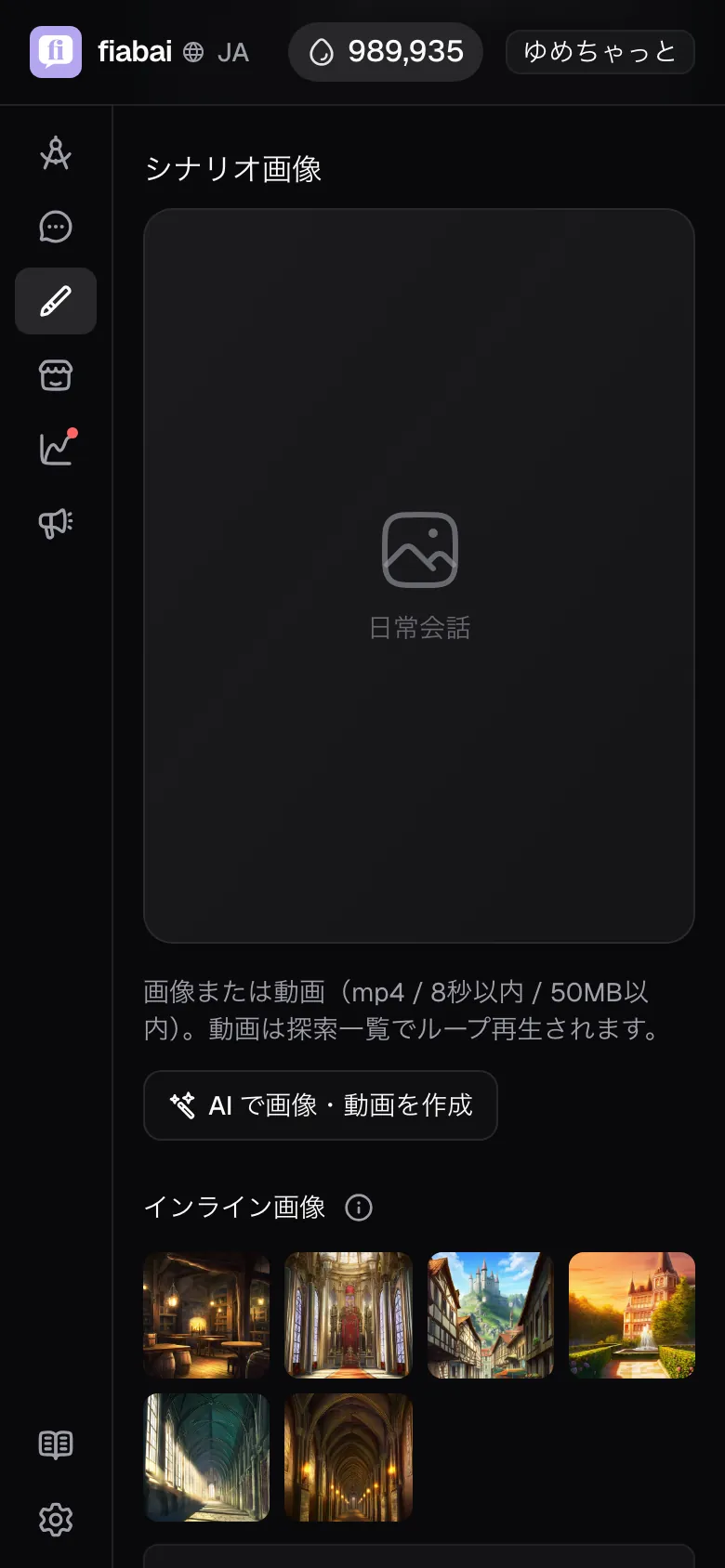
- "Create image / video with AI" in the scenario editor's "Images" step — the button below the scenario image. It has three tabs: "Image", "Video" and "Variants". The "Video" tab appears only from this entry point, and images can be set as either the character image or the scenario image.
- "Create in Media Studio" in the story editor — the button next to the cover image. A screen just for the story's cover, where you can pass up to 10 reference images.
The "Variants" tab registers images for inserting illustrations into the chat text. Variants registered here belong to the character, and are used in chats in both the scenarios and the stories that character appears in. How to write them is covered in the inline images chapter.
Making character and scenario images
The left side is the input; the right side is the "Generation history". Fill it in from the top.
- "Art style" — choose from four: Comic (bold lines and screentone, manga style), Light novel (soft shading, the default), Semi-real (between anime and photo) and Realistic (photorealistic). The style you choose is added to the prompt automatically, so there is no need to write "in anime style" in the text.
- "Outfit, scene, pose, and so on" — write what you want drawn. Press "Insert template" and only the headings
# Outfit / # Scene / # Pose / # Expressionare inserted, so you add text under each heading (this button works when the text is empty). Press "Extract look from profile" and the AI pulls only the appearance description from that character's profile into the text (it costs no Ink; it counts toward the 50 AI assists per day). - "Image model" — with the switch OFF it is Gemini (the default); ON is Seedream. Seedream leans toward crisp anime shading.
- "Reference image (optional)" — you can pass just one (up to 8MB per image). Passing one switches to "use the reference as the base and override it with the prompt", which greatly improves consistency of appearance.
- Press the generate button and a confirmation dialog appears. The aspect ratio is fixed at 3:4, and no text is drawn in. Generation takes up to about a minute, and the preview opens when it is done.
Adopt it from "Generated image" in the preview with "Set as character image", or, if you opened it from a scenario, "Set as scenario image". Even if you do not adopt it, the image stays in the pool, so you can pick it again later from the "Generation history".
Making a story cover
The story's Media studio is a screen for gathering the cast's character art into a single picture. There is no art style choice; instead, you set the direction with reference images and the model.
- "Image to image" / "Text to image" — switches whether reference images are used. Choose "Text to image" and no references are passed.
- "Reference images (up to 10)" — add them by dropping or clicking. Press "Pick from cast" to bring them in directly from this story's cast character images and the generation pool. Their order maps to "1st image, 2nd image…" in the prompt.
- "Prompt" — up to 4000 characters. There are three templates, "Group poster", "Action" and "Battle scene"; press one to insert fill-in-the-blank text like [background: …] [lighting: …]. Replace what is inside the brackets with words from your own story.
- "Model" — choose from four. Each card shows its Ink cost.
- Best quality (GPT Image) — 15 Ink. Keeps the references' shading and texture as they are. Generation takes about 2 minutes.
- High quality (best for multiple characters) — 10 Ink. Good at composing several references into one picture, and finishes quickly. The one to use for three or more characters.
- Standard — 4 Ink. The same style family as High quality, at low cost. For simple compositions with 1–2 characters.
- Anime style (Seedream) — 4 Ink. A flat anime look. The references' art style tends not to carry over, and it leans toward its own colors.
The aspect ratio is fixed at 3:4 to match the cover, and no text is drawn in (the title is overlaid when displayed). Adult content cannot be generated.
Click a finished image to enlarge it, and from there you can choose "Set as cover", "Download", "Reprompt" or "Regenerate". "Reprompt" only puts the settings back into the input fields (no Ink), while "Regenerate" makes another one on the spot with the same settings (it uses Ink).
How you learn that generation has finished
How you wait differs by screen. Mix these up and you end up not noticing that it has finished.
- Character and scenario images are synchronous. Press the button and a progress bar appears on the spot; when it finishes, the preview opens. Closing this screen cancels the generation.
- Story covers and videos are asynchronous. Press the button and "Generation started" appears, and the history card shows "Generating…". Generation continues even if you leave the screen, and the result is picked up when you come back and open the screen. Completion and failure are announced with a toast.
- Asynchronous generation runs one at a time (per story, per character). While one is running the button is disabled, and forcing a request returns "already generating".
Making short videos
Video takes a still image as a seed and animates it for a few seconds (no audio, played on a loop). Make it in the "Video" tab opened from the scenario editor.
- "Model" — Kling v3.0 Std (anime / illustration, selected by default), Veo 3.1 (realistic / photo), Seedance 2.0 (high fidelity to the source image's face and clothing), Veo 3.1 Lite (lightweight, low cost).
- "Length" — the default is 6 seconds for every model. The Ink cost changes with the length.
- Kling v3.0 Std: 5s 8 / 6s 10 / 7s 11 / 8s 13
- Veo 3.1: 4s 15 / 6s 23 / 8s 30
- Seedance 2.0: 4s 12 / 5s 15 / 6s 18 / 7s 21 / 8s 24
- Veo 3.1 Lite: 4s 3 / 6s 4 / 8s 5
- "Seed image" — the picture to animate. The default is the scenario image; you can switch to the character image or an image from the generation pool.
- "Motion" — "None" gives subtle natural motion like hair, breathing and blinking. "Custom" takes up to 400 characters; describe "the character's own motion + ambient motion (wind, light, particles)" in 1–2 sentences.
Videos can only be made with Color Ink (purchased Ink). Monochrome Ink is not used even if you have some left, and if you are short on Color Ink the button is disabled and you are pointed to the Store. Generation takes about 2–4 minutes, and if it fails, the Ink is refunded automatically.
Adopt the finished video with "Set as scenario video", and that scenario's thumbnail in the Explore list plays on a loop.
Ink costs at a glance
- Character and scenario images: 4 Ink per image (the same regardless of model or art style)
- Story covers: 4 / 10 / 15 Ink (depending on the model; shown on the card)
- Videos: 3–30 Color Ink (depending on model and length; shown on the generate button)
- "Extract look from profile" and "Reprompt": free
Refunds are not handled the same way everywhere. Story covers and videos are refunded automatically on failure, but character and scenario images do not refund the Ink when they fail, whether from the AI refusing, congestion or a timeout. If you are trying borderline content, starting from the story cover, which does refund, is the safer route.
Inputs that trip people up, and how to fix them
- It fails with "contains prohibited content…" — depictions that look underage, real people, and strong violence get caught. Remove words that suggest age (school uniform, student and so on), tone down blood and wounds, and rewrite.
- The character comes out in exactly the same pose as the character art — passing a reference tends to copy even the posture. Name the pose and motion in the prompt ("raises a weapon and lunges", "looks back over the shoulder", and so on) and it breaks away. The "Action" template is written this way.
- The picture comes out wide, with white bands above and below — this happens with instructions that only describe a lineup, like "three people standing side by side". Add composition words like low angle, depth, full bodies in frame and the frame fills up.
- More references, but the faces blend together — to fit three or more people in one picture, switch to "High quality (best for multiple characters)". "Standard" is for 1–2 characters.
- A reference image cannot be added — anything over 8MB per image is rejected. Story covers are capped at 10 images, and once full, "Pick from cast" cannot be pressed either.
- The video generate button cannot be pressed — almost always because there is no seed image. Set a scenario image or character image first, or choose an image from the generation pool as the seed.
- The video loop breaks, or turns into something else — big movements like "starts walking" or "turns and leaves" keep the last frame from returning to the first, so the seam stands out. Keeping it to motion that stays in place makes it stable.
- It says the service is busy — the generation service is congested. Wait a few dozen seconds and resend the same thing. Story covers are refunded automatically, but character and scenario images do not refund the Ink even when they fail from congestion.
Recipes: what you want → what to do
Goal
Make a story cover with three cast members together
Where: Story editor → "Create in Media Studio"
What to write
Image to image
Switch to this tab and add three people's images with "Pick from cast".
Their order becomes "1st image, 2nd image…".
Prompt
Insert the "Group poster" template and replace [background] and [lighting] with words from your own story.
Model
High quality (best for multiple characters) — 10 Ink
What happens
A 3:4 cover is generated asynchronously and appears in the "History" when finished. "Set as cover" makes it the story's cover.
Note: To keep faces and outfits exactly, step up to "Best quality (GPT Image)". It costs 15 Ink, though, and takes about 2 minutes.
Goal
Make a thumbnail that moves in the Explore list
Where: The scenario editor's "Images" step → "Create image / video with AI" → the "Video" tab
What to write
Model
Kling v3.0 Std (animates while keeping the illustration style)
Length
6 seconds (10 Color Ink)
Seed image
Scenario image (leave the default)
Motion
"None". Make one with the default, subtle motion first and see how it looks.
What happens
Generation finishes in 2–4 minutes; press "Set as scenario video" and the thumbnail in the Explore list plays on a loop.
Note: If the character's art style is closer to photos, switch to Veo 3.1; if keeping the character art identical comes first, switch to Seedance 2.0.