Contents▾
How to play
Play from ExplorePlaying a chatPlaying storiesHow Ink worksSet up your personaPlay with diceHow to create
A worked exampleCreating a characterCreating a scenarioInline images: illustrations in the chatMoving the story with phasesEmotion parameters for personalityFeed world facts on demandBuilding a TRPGMake images and videoPublish your workGetting better
Writing so the AI understandsInline images: illustrations in the chat
Inline images drop illustrations into the body of the chat. Give each image a name and a display condition up front, and when a scene matches the condition, the AI slips the image into the text. A chat that used to be mostly text gets a picture for each scene.
What it does
Register a few images on a scenario and give each one a "Name" and a "Display condition". While playing, the AI decides as it writes "which image's condition does this scene match" and drops the matching image into the middle of the text. The player does nothing; the AI switches the pictures to match the scene.
An inserted image appears outside the speech bubble, right after the scene it belongs to. If the scene moves within a single reply, more than one image can appear, one each time.
Three places to register
There are three places to register images, and where you put one decides which kind of play uses it.
- Scenario inline images — "Inline images" in the Images step of the scenario editor. Up to 50 per scenario. Used in that scenario's chats. The display range can be bounded by phase.
- Character variants — the "Variants" tab of the media studio on a character's detail page. Up to 60 per character. These are that character's expression and pose assets, used as their art in both scenario chats and stories the character appears in. If a name overlaps with one of the scenario's inline images, the scenario's image is used.
- Story images — "Images" under Advanced in the story editor. Up to 110 per story. This is for scenery, monsters and scenes that belong to no particular character. Unlocking is bounded by place and chapter (see the Playing stories chapter).
The places differ, but the mechanism is the same everywhere: give an image a name and a display condition, and let the AI choose it. Everything below applies to all three.
Preparing images
Scenario inline images are upload only (this screen does not generate them). You bring in variant images you prepared yourself. Register them from "Inline images" in the Images step of the scenario editor. Drag & drop or click to pick, then give each one a name and add it.
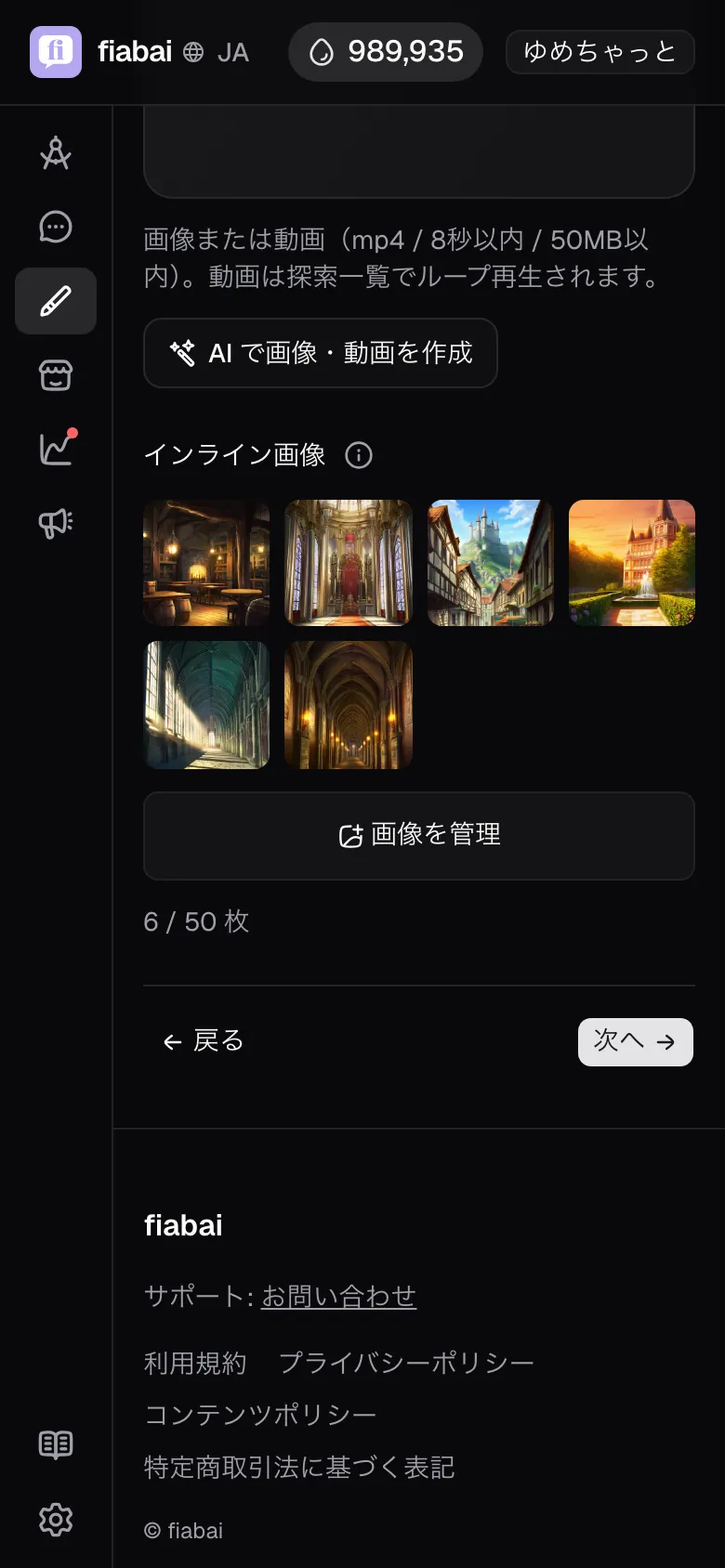
- Up to 8MB per image. Uploaded images are automatically optimized (scaled down to at most 768px on the long side and converted to WebP), so delivery stays light.
- Having a full set of the same character's expression variants (smiling, surprised, tearful) and scene cuts (a specific action or setting) lets you show pictures across many situations.
- Character variants can also be picked from the pool of images you generated in the media studio.
Writing names and display conditions
The name becomes the "tag" the AI writes into the text. A name that makes the scene or expression obvious at a glance helps the AI pick the right one (up to 40 characters; braces and line breaks are not allowed).
- Good names: "smiling (entrance)", "surprised face", "resolute look", "by the campfire (night)" — ones that tell you when the picture is for.
- Confusing names: "image1", "variant A" — ones that say nothing about the contents.
The display condition describes "in what scene should this picture appear" in a plain sentence, up to 100 characters. The single biggest tip here is that the "form" of the condition sentence changes the timing.
- Moment form "when ... happens": for a signature shot you want just once, at that moment. e.g. "when the door opens", "when the spell is cast".
- Ongoing form "while ... is happening": for a picture you want to keep showing as long as the scene continues. e.g. "while they are by the campfire", "while the two are walking side by side".
If you write an image you want shown often in the moment form, it only matches on the turn the scene starts and cuts off right away.If you want it "while the scene continues", use the ongoing form. The ongoing form naturally stops matching once the scene ends in the text (e.g. "the fire went out").
Recipes: what you want → how to write it
Goal
Show a single signature shot at the crucial moment
Where: Each inline image = name + display condition
What to write
Name
A name for what that one shot is, e.g. "resolute look".
Display condition
Write it in moment form. e.g. "when they steel themselves", "when they stand up".
Matches only on the turn of that moment.
What happens
On the turn whose text depicts that moment, the AI inserts one image right after the text.
Goal
Keep showing a picture while a scene continues
Where: Each inline image = name + display condition
What to write
Name
A name that identifies the scene, e.g. "by the campfire (night)".
Display condition
Write it in ongoing form. e.g. "while they talk by the campfire".
Can appear again turn by turn while the scene continues.
What happens
The AI inserts the same image turn by turn while the scene continues, and stops naturally once the scene ends in the text.
Note: For a scene that advances in stages (approaching → side by side), cover each stage in ongoing form ("while approaching", "while side by side") so there are no gaps in between.
Goal
Show pictures as often as possible, even outside specific scenes
Where: Add a few general expression/emotion cards to your inline images
What to write
Name
The expression itself: "smiling", "blushing", "surprised", "tearful".
Display condition
Write it as the state of showing that emotion. e.g. "while they look happy", "while they are blushing".
What happens
On turns that do not match a scene card, a general card matching the character's expression gets picked up, raising the share of turns with a picture across the whole chat.
Preventing spoilers with the display range
Each image can have a "Range". The default is "Always shown", but in a scenario that uses phases you can narrow it to"From ..." (unlocked once that phase is reached) or "Until ..." (only before entering that phase).
An image with a narrowed range is not handed to the AI either until it is reached. Its name and display condition are hidden too, so "a look that only appears in the finale" or "a picture from after the truth comes out" is never let slip early by the AI in the opening stretch. It is the same idea as the phase spoiler guard.
For story images the boundary is place and chapter rather than phases. "Only while you are at this place" and "from chapter 3 onward" narrow what is handed over in the same way.
Writing tags yourself
Image insertion is represented in the text by a tag: {{img:name}}. Besides the AI writing it automatically, you can write it by hand and it shows up the same way. When you always want an entrance picture at the very start of a scenario (the first message), or when you want to "add / remove one here" via message edit (✎), write the tag in this form and it shows as part of the text (match the name to a registered name).
About which images you may use
Inline images are shown to other users as part of a published scenario. Do not register images indistinguishable from real people, or sexual depictions of anyone who looks underage.Follow the content policy for the details.