Contents▾
How to play
Play from ExplorePlaying a chatPlaying storiesHow Ink worksSet up your personaPlay with diceHow to create
A worked exampleCreating a characterCreating a scenarioInline images: illustrations in the chatMoving the story with phasesEmotion parameters for personalityFeed world facts on demandBuilding a TRPGMake images and videoPublish your workGetting better
Writing so the AI understandsPlaying a chat
Once you have a character and a scenario, you can start chatting. Here are the basic controls and a few handy ways to write.
Starting a chat
- A published scenario: open the scenario in Explore and press "Start a chat with this scenario" on its detail page.
- A published character: the button on the character's detail page in Explore (it carries the name of that character's default scenario) starts a free talk with them.
- Your own character: in the scenario list on the character's detail page, press "Start chat" on the card of the scenario you want to play.
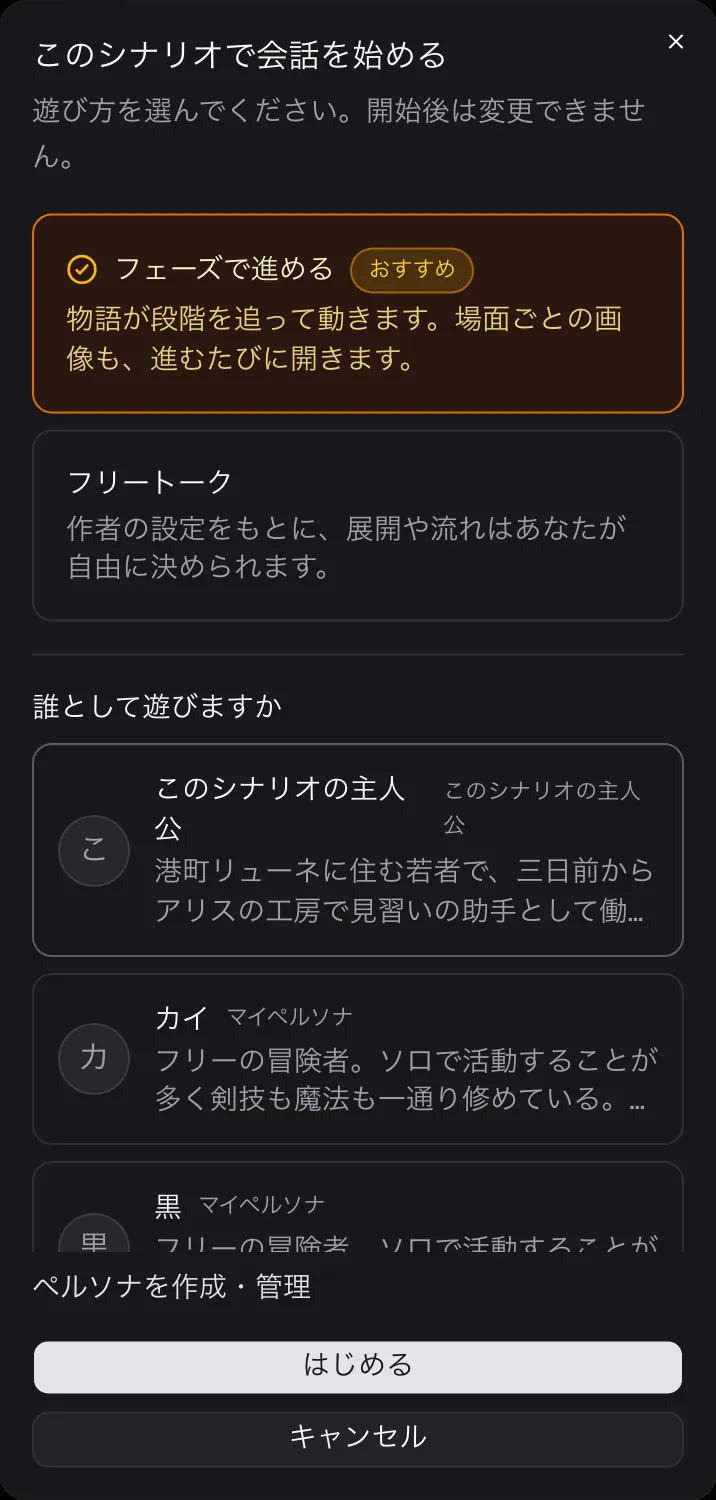
For a scenario with phases, a dialog opens before you start where you choose how to play and who you play as. There are two ways to play, "Advance through phases" and "Free talk"; the next section explains the difference. In the same dialog, pick the author's "Protagonist for this scenario" or one of your own My personas to play as that person. How you play and which persona you use are fixed when the chat starts and cannot be changed later. Scenarios without phases skip the dialog and start right away.
When the chat screen opens, the scenario's opening scene appears automatically. Only if it fails to load does a "Show the opening" button appear; press it to bring the scene up again. If the author did not write an opening, the chat begins with your first message.
There are also stories, where you play with several characters across chapters. The screen works a little differently, so see the playing stories chapter.
Advance through phases / Free talk
- Advance through phases: play the storyline the author built, scene by scene. The character's stance shifts with each scene, and meeting a condition moves you to the next phase. Each scene's images unlock as you move forward.
- Free talk: build on the author's setting and emotion settings, and decide the direction and flow yourself. The storyline written into the phases is not used, and no button to move to the next phase appears. Every illustration the author registered is available from the start.
A chat started from a character's detail page is also called "free talk". It uses the default scenario each character comes with, so you can enjoy talking with the character without a set plot.
Moving to the next phase
When you play with "Advance through phases", a "Advance to “phase name” →" button appears below the messages once the condition is met. In scenarios that hide upcoming phases it reads "Advance to the next scene →". The author sets how each phase advances, and it works like this.
- Player chooses: the button is there from the start. Press it whenever you like to move on.
- After a number of messages / When feelings reach a level: the button appears once the condition is met, and pressing it moves you on. Meeting the condition does not advance on its own, so you can stay in the scene a little longer. Near the input field you can see your progress: how many messages remain, or which feelings have reached their level.
- Advance when an event happens / Let the AI decide when: the AI watches the chat and moves to the next phase automatically. No button appears.
- Branch points: one button per destination is lined up, and each becomes pressable once its condition is met.
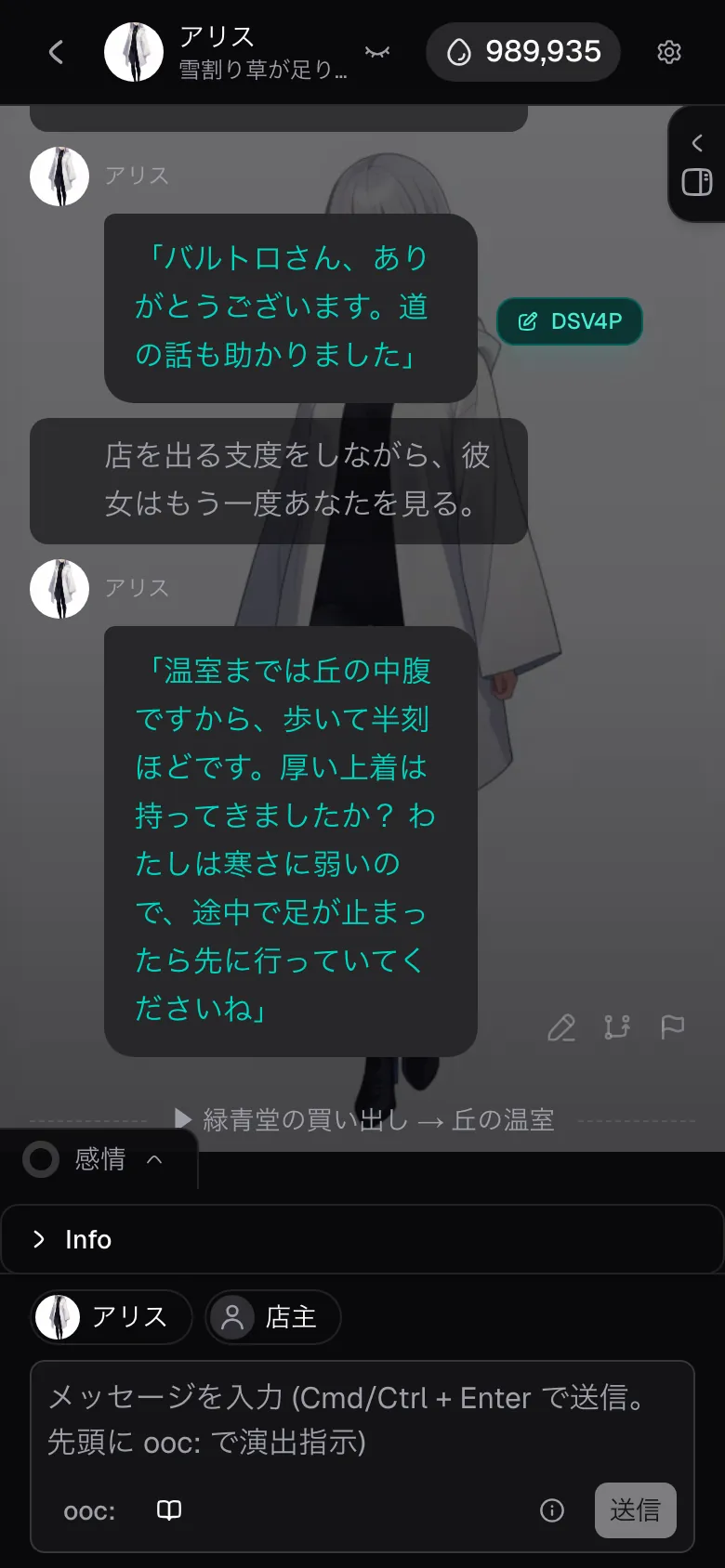
You can check each phase's direction in read-only form from the "Phases" tab in the side panel (open and close it with the tab on the right edge of the screen) on PC, or the book icon by the input field on a phone. In scenarios that hide upcoming phases, phases you have not reached yet show as "???".
Message controls
Each message carries a few controls.
- ⟳ Regenerate: rewrites the last AI reply. Emotion values and the status sheet that moved on that turn roll back to their values before the reply, so it works as "undo everything from this reply onward". It spends Ink for the new generation.
- ✎ Edit: rewrite the text of your own message or the AI's reply directly. Useful for nudging the thread of the story.
- ▶ Continue: have the AI write on with no user line (this spends Ink).
- Branch from here: creates a new chat that carries everything up to that message, so you can try a different direction. The original chat stays as it is. Branch from one of your own messages and the new chat carries everything up to just before it, with your message put back in the input field so you can rewrite it and carry on.
- Share this scene: turn a scene you like into a share page and send its URL to X or LINE. You can check the text and trim it before sending, so you can leave out anything you'd rather not show, such as names. Available for public and unlisted all-ages works.
- Report: let the team know when you find content that breaks the terms.
- Retry: appears when a generation failed. The Ink for the failed attempt is already refunded, and retrying spends it anew.
OOC notation: mixing in stage directions
Start the input field with "ooc: " and everything up to the first blank line is treated as a stage direction for the character. It is not chat dialogue; it tells the AI how you want the next character reply to move. The direction part is highlighted inside the input field, so you can see at a glance where it ends. In chats played with phases, the "ooc:" button in the input field inserts it at the start for you.
ooc: have them stand up and step toward the window

"Shall we get some fresh air?"
- Send a direction and a message together: leave one blank line after the direction and write your own line, and the send button changes to "Send direction + message". The direction applies only to the next reply, and your line stays in the chat as normal dialogue.
- Send only a direction: send with nothing after the direction (the send button reads "Direction + let AI continue"), and the AI writes the continuation with no user line (this spends Ink like any other message).
"Writing tips" near the input field shows the conventions: 「」corner brackets for spoken lines, ()parentheses for unspoken thoughts, and unbracketed prose for actions and situation. Keeping the format consistent keeps the AI's replies consistent too.
Speaker markers: "@Name:"
Start a line with "@Name: " and everything up to the next blank line becomes that person's line. You can also write lines for the character or for anyone else on the scene (a knight, a shopkeeper, and so on), so you can move the scene the way you want.
@Knight A: Another report? We've had a lot lately.

"Please wait, it's true!"
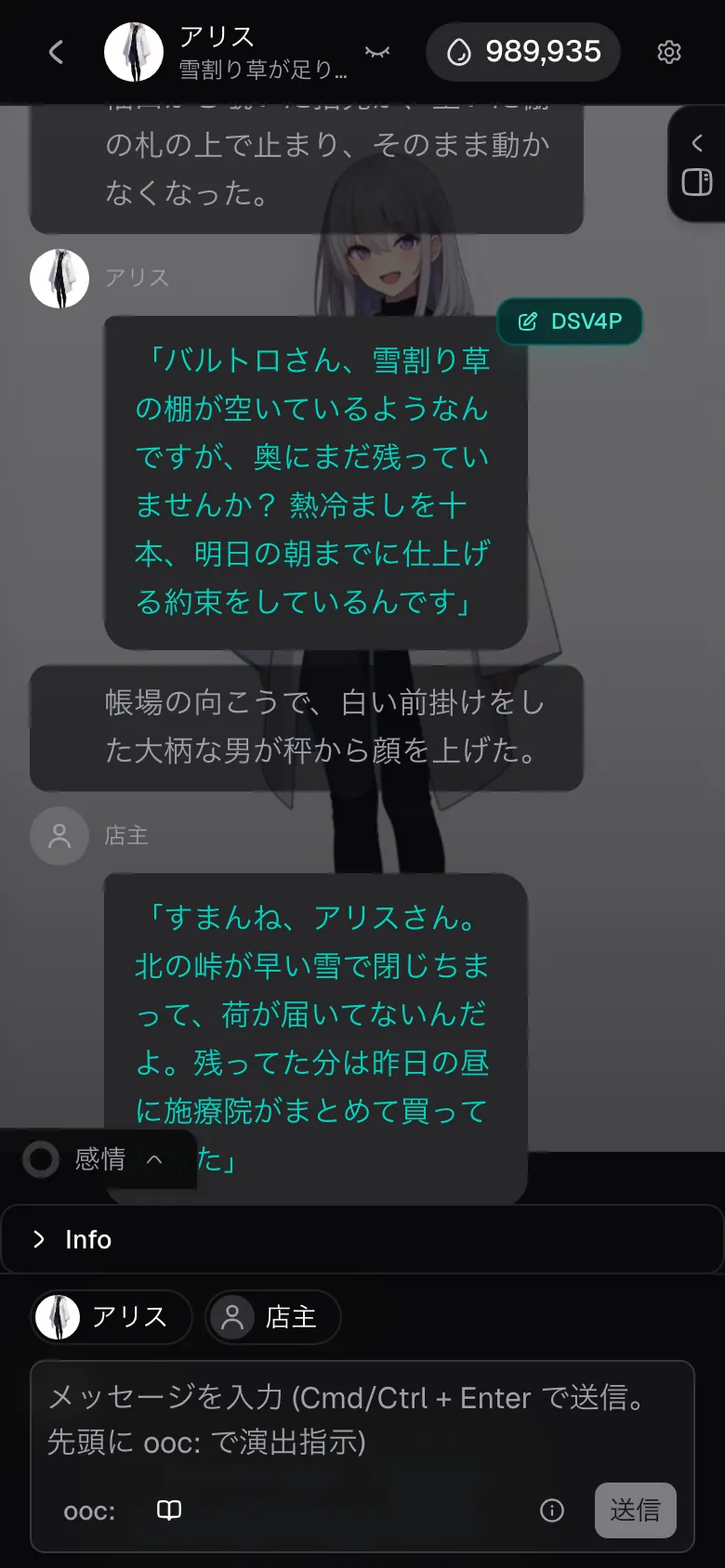
- Speaker chips: people are lined up above the input field, and pressing one inserts "@Name: ". The character you are talking to (the cast, in a story) is there from the start, and people who appear in the chat are added later.
- Your own lines: anything without a marker is what you (the protagonist) say. To follow someone else's line with your own, leave one blank line between them.
- Display: your lines appear on the right, and other people's lines appear on the left with a name tag. The AI's replies use the same notation, and people without a profile get a generic person icon.
- Rewrite a marker with ✎ Edit and the speech bubble switches to that person.
The status sheet (Info)
The "Info" tab in the side panel holds a sheet listing the current situation as "Field: value". It records the things that shift as the chat goes on: money, companions, condition, location.
- It updates by itself as the chat moves. Receive an item and your inventory grows; let time pass and the clock moves.
- You can edit it. Rewrite it one field per line under "Edit" and the next reply treats your version as the premise. Use it to fix a record the AI got wrong, or to add a field mid-play.
- You cannot edit it while a reply is being generated.
- Scenarios can supply the opening fields ("Info format" in the scenario editor). Even without one, the sheet fills in as the chat progresses.
Illustrations inside the text
In scenarios and stories that have images registered, illustrations are dropped into the chat text when a scene matches their condition. Nothing is required of the player. How it works, and how to use it in your own work, is in the inline images chapter.
Chat settings
The "Settings" tab in the panel changes how this chat behaves.
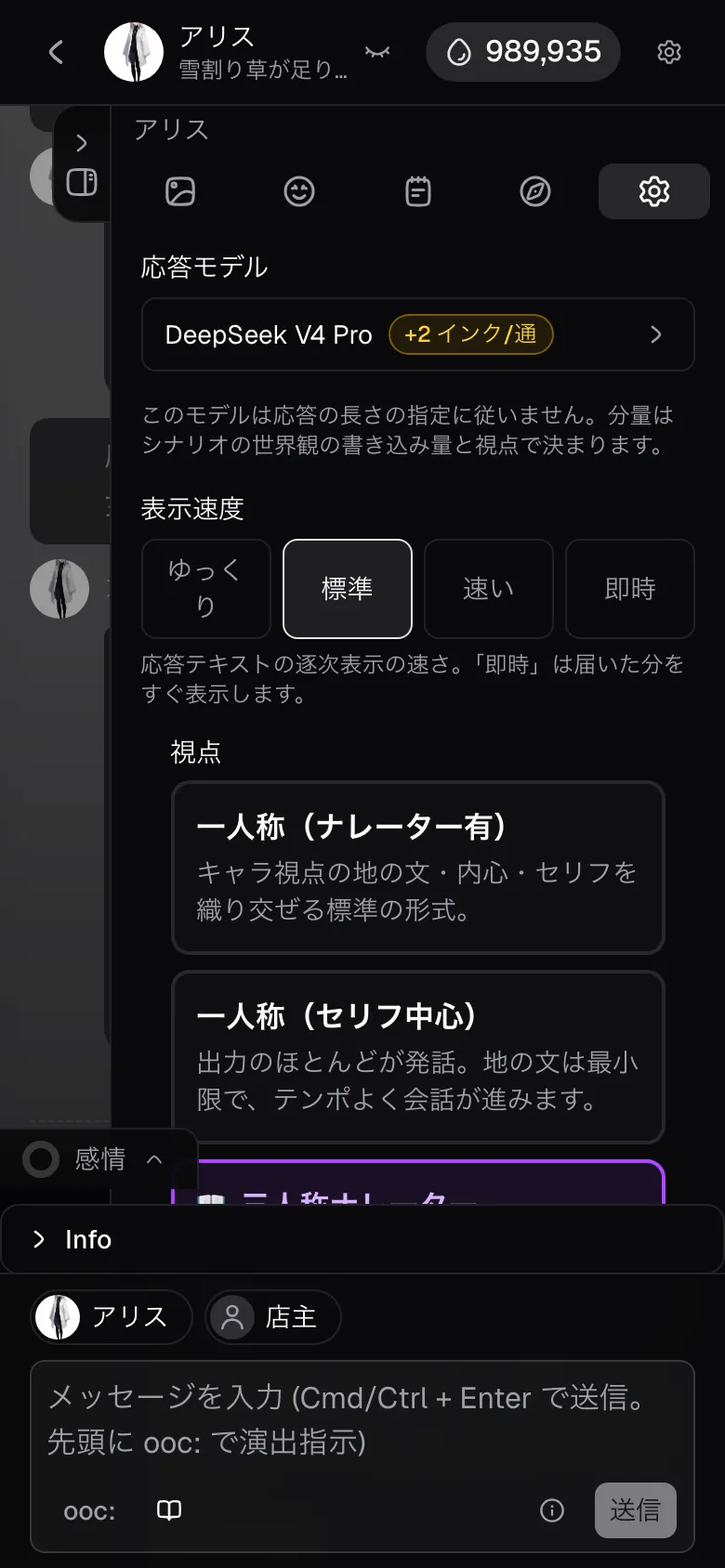
- Response model: which AI model writes the text. The default is DeepSeek V4.1 Flash (1 Ink per message), fluent in Japanese and good at keeping voice and context, and you can switch to a higher-tier model with richer description. Models that cost extra Ink show "+N Ink/msg". Choose by how rich you want the description and how fast you want the pace. The same screen shows the providers' current status.
- Reasoning: Off / Reason. Choose "Reason" and the AI reasons deeply through the story so far and the scene before writing, improving reply quality (+1 Ink/msg). Grok, Gemini, GPT and Claude always reason, and show "Always on". Below the setting you see "N Ink per message with these settings", the total for one message.
- Response length: Concise / Standard / Long (Long by default). It changes the rough volume of a single reply (from the next reply onward). It only appears when the selected model follows the length setting. With DeepSeek models you see "This model does not follow the response length setting" instead.
- Text speed: how fast a reply is revealed. "Instant" shows whatever has arrived immediately. This setting is shared by every chat.
- Reply suggestions: Off / On. Turn them on and, shortly after each reply arrives, 2–3 suggestions for what to say next appear below it. Tap one to send it as is, or use the pencil to rewrite it first. You choose this per scenario chat; stories follow the author's setting.
Switching the perspective
"Perspective" in the chat settings lets you pick one of three styles for the character's replies (stories always use the narrator form, so the switch does not appear there).
- Third-person narrator (= default): alternates narration and dialogue, with rich scene description. It reads like a novel, so you can savor the setting.
- First person (with narration): weaves together narration from the character's point of view, inner thoughts and dialogue. The character speaks as "I", so they feel closer.
- First person (dialogue-first): almost all of the output is speech, with minimal narration. Good when you want a quick back-and-forth.
The switch applies per chat, so other chats are unaffected. The AI writes with the earlier exchanges in view, so if you switch mid-chat it can take a little while to settle into the new perspective.
Memory in long chats
As a chat grows long, older exchanges are summarized automatically and handed to the AI. Every time 30 unsummarized exchanges build up, the older ones are folded into the summary, keeping the latest 10 as they are. Moving to a new phase also produces a summary of the scenes so far. Without you doing anything, replies keep building on what happened before. There is no screen for viewing or editing the summaries.