Contents▾
How to play
Play from ExplorePlaying a chatPlaying storiesHow Ink worksSet up your personaPlay with diceHow to create
A worked exampleCreating a characterCreating a scenarioInline images: illustrations in the chatMoving the story with phasesEmotion parameters for personalityFeed world facts on demandBuilding a TRPGMake images and videoPublish your workGetting better
Writing so the AI understandsCreating a character
Start by creating one character to talk with. The trick is to write only the core that works with any partner — events and relationships belong in the scenario.
Start from "Create character" on the Characters page. The creation screen is a single form, and you can write it while consulting Alice right there.
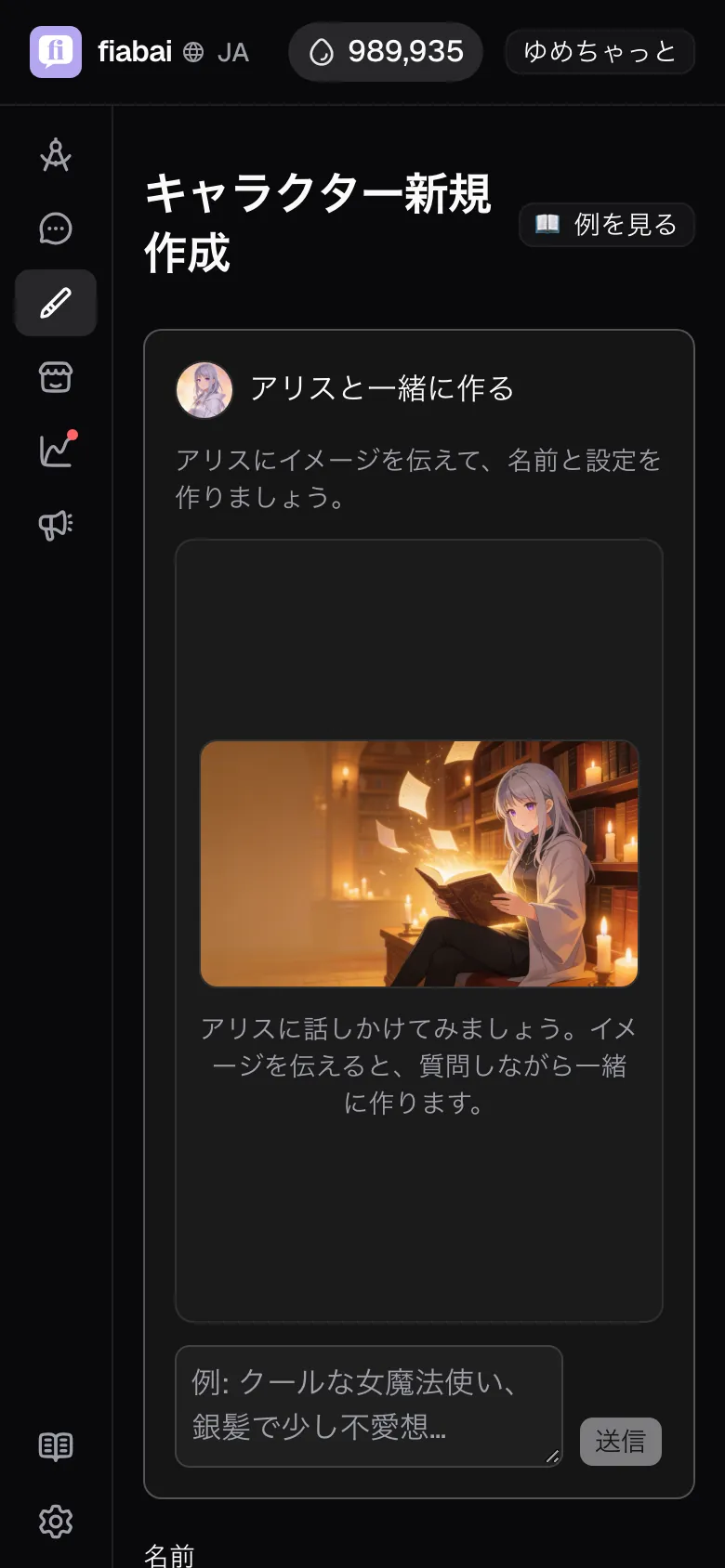
Building it with Alice
The creation screen has a conversation field with Alice. Describe what you have in mind — "a blunt archer who quietly looks after everyone" — and Alice asks about the gaps, then writes a draft name and character setup into the form.
- The draft is fully editable once it lands. Rewrite all of it if you like.
- Having a rough draft to fix takes shape faster than starting from a blank page.
- The assist is free but capped at a number of uses per day. Once you hit the cap, create directly from the form.
All you need to create one is a name and a character setup
- Name: once you settle on how they are addressed, the feel of the conversation stabilizes.
- Character setup: a third-person introduction such as "Mina is a 22-year-old…", covering their appearance, the core of their personality, and their way of speaking. Events and relationships (= their relationship with the protagonist) go in the scenario, so keep this to "who this person is" and nothing more.
- Image (optional): on the creation screen you can attach one by uploading. If you want AI to draw it, generate one after creating the character, in the "Media studio" on its detail page (this consumes Ink). Write the appearance from the image into the character setup as well, so the AI can portray it correctly from the text.
You do not need an image to create a character, but you do need one to publish the character. Publishing or unlisting a scenario with that character also requires either a scenario image or the character's image.
Press "Insert template" and you get a one-line introduction plus eight headings: appearance, personality, motivation, pressure, reaction patterns, speech spec, vocabulary and showing emotion. The "ex:" lines under each heading are examples of how to write it; replace them with your own character's details, then delete them. Filling in every heading comes to about 15–25 lines, which keeps the character from running out of topics and reactions even in a long chat. You can read how the sample character Alice is written from "See example" on the creation screen.
Writing a good character setup
- Describe personality through actions. Instead of "kind", write "the type who hands you a towel before saying a word when they see someone in trouble" — this gives the AI something concrete to act out in its replies.
- Spell out the voice in "Speech spec". Settling how they refer to themselves, how they end sentences and their verbal habits — "polite speech, never drags out word endings", "a hint of dialect, refers to themselves casually" — keeps their voice from drifting.
- Do not write relationships here. Ties like "childhood friend of the protagonist" or "senior colleague" belong in the scenario (= You and the character). Keeping the character itself down to the core lets you reuse them across many scenarios.
What you can add after creating
Once created, you move to the character's detail page, where you can add the following. All of them are optional; press "Update" to save what you add.
- Public description: an introduction shown on Explore and on the work's detail page in place of the character setup. Markdown is supported. Even if the character setup holds a spoiler-heavy hidden side, you can introduce only the part you want to show.
- Publish this character: the character is listed among the characters on Explore, and other people can talk to them in free talk too. Publishing requires a character image.
- Adult (NSFW): set this on a character with adult content.
- Tags: markers that help people find the character on Explore. You can add up to 20.
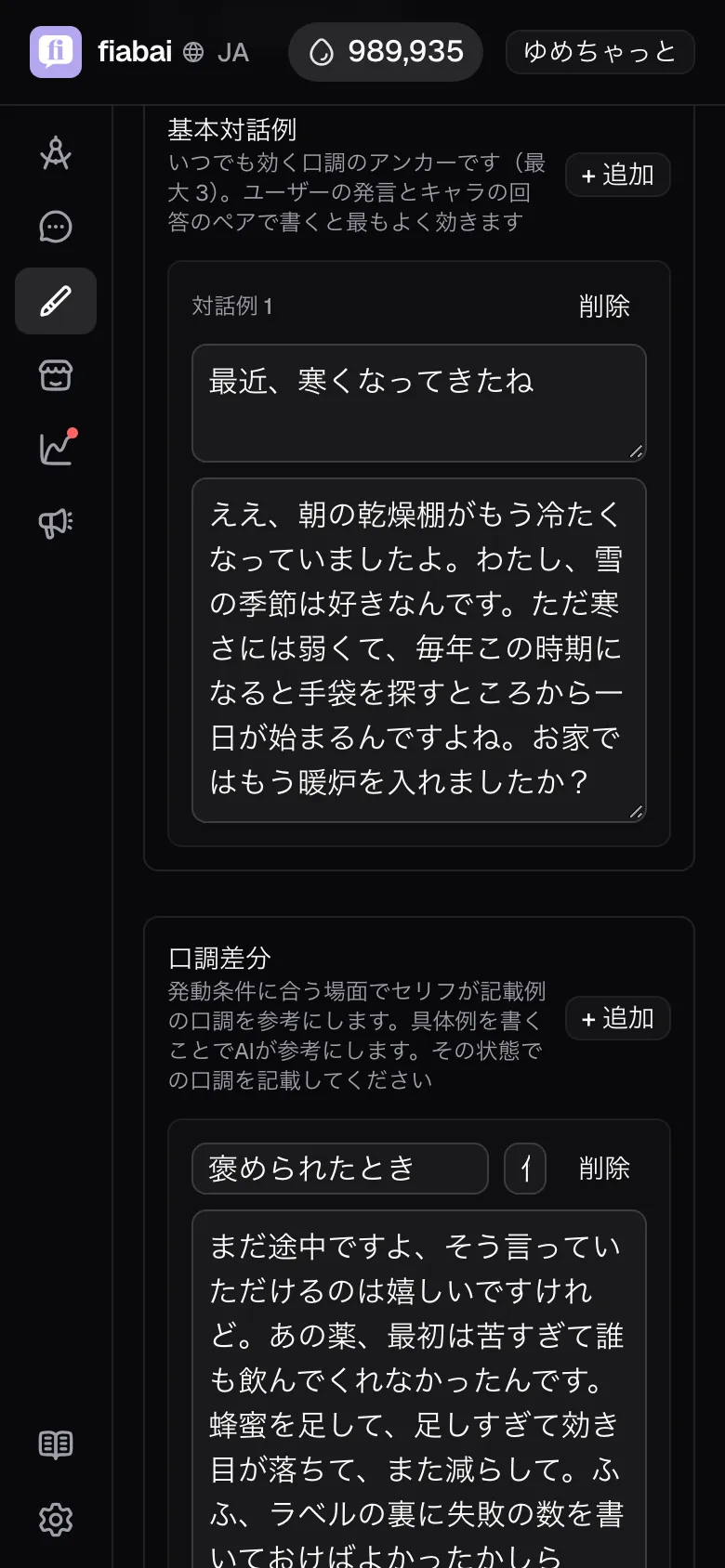
- Voice variants: attach a trigger and example lines to a state such as "when angry" or "when flustered". In scenes that match the trigger, the character speaks with that voice as a reference.
- Base dialogue examples: models of their voice that always apply (up to three). Writing a "User's line" and a "Character's reply" as a pair keeps the character's way of answering steady.
Media studio (images, video, variants)
"Media studio" on a character's detail page gathers everything visual for that character.
- Image: generate portraits with AI. What you generate collects in a pool, and you can adopt any of it later as the character image or a scenario image. Picking an "Image style" (Luminous cel, Painterly, Watercolor, and more) gives you the paint and composition of its sample. Switch the image model to Seedream to choose from four art styles: comic, light novel, semi-real, and realistic. Uploading a reference image greatly improves appearance consistency.
- Video: a tab that appears when you open the studio from a scenario's Images step. It turns a generated image or the character image into a short clip. The gentler the motion — hair moving, a slow blink — the cleaner the result. A clip can be adopted as a scenario thumbnail video.
- Variants: register expression and pose variants under a name (up to 60 per character). Images registered here are dropped into the chat text as illustrations to fit the scene, in both scenario chats and stories the character appears in. If a name overlaps with one of the scenario's inline images, the scenario's image is used. Pick from the pool or drop in your own files. See the inline images chapter for the details.